SIG TEAMWORK!!!


Having problem installing mbstring on your Centos 7 Server running php 5.5.x and php 7.x In my case php-mbstring for php 7.x is missing!
Solutions:
yum install scl-utils
yum install https://dl.fedoraproject.org/pub/epel/epel-release-latest-7.noarch.rpm
yum install http://rpms.remirepo.net/enterprise/remi-release-7.rpm
yum install php70-php-mbstring
With this you have PHP7 and php-mbstring extension running next to the other PHP versions!
Don’t forget to restart your apache webserver
systemctl restart httpd
Enjoy!
I had a hard time to figure out how to use Let’s Encrypt SSL Certificate on a Kerio Connect Mail server running on a Windows 2012 R2 Webserver / IIS
The first thing I installed is called Certify the Web!
https://certifytheweb.com/
This tool was already deploy on the Windows 2012 R2 Server, follow the step or dig out how to deploy Certify the Web on your Windows 2012 R2 Server.
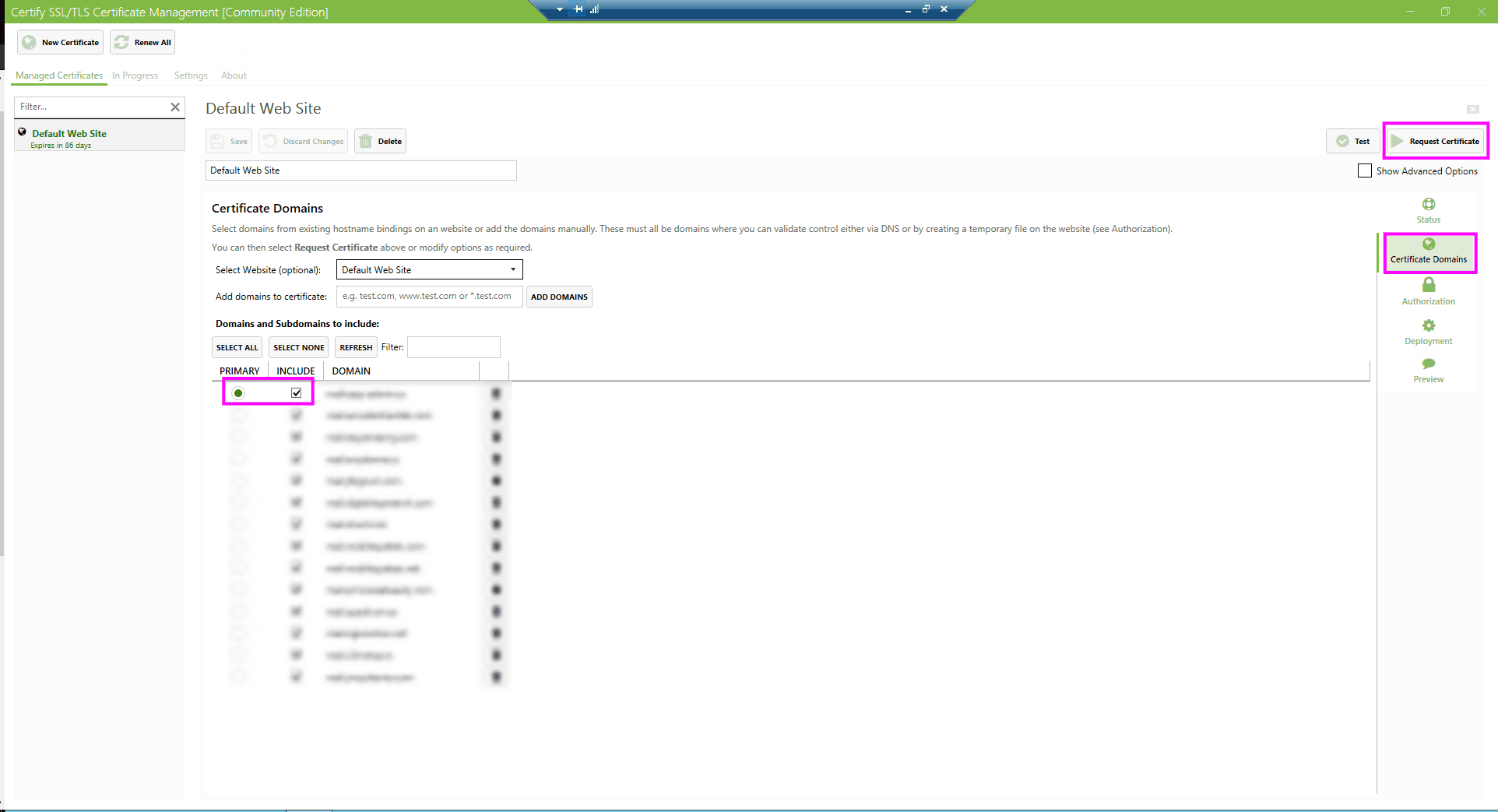
The first thing to do! You must request a certificate using Certify the Web for the PRIMARY mail domain name;

So now you have a valid certificate for mail.yourdomain.x
just test it… https://mail.yourdomain.x

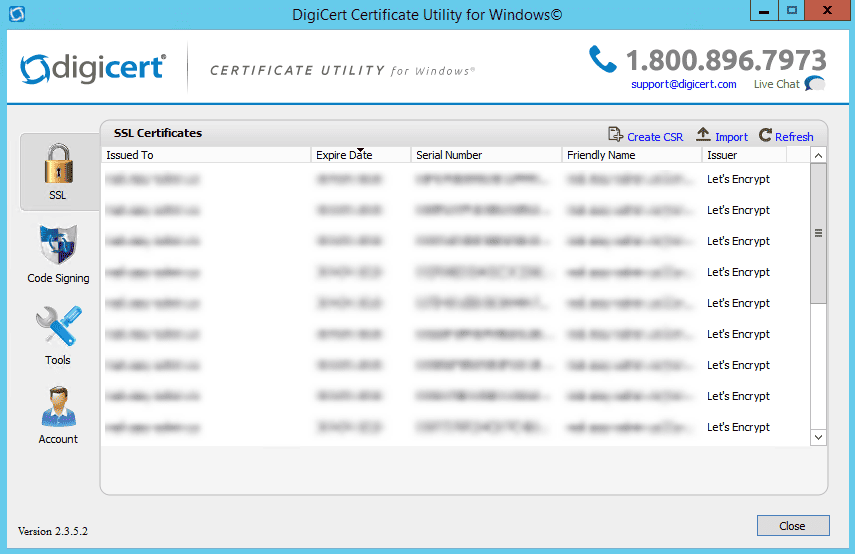
Now to use the Let’s Encrypt SSL certificate on your Kerio Connect mail server, you must use a tool to be able to export the .key and .crt file to your Kerio Connect mail server. This tool is called DigiCert Certificate Utility Free for Windows!
https://www.digicert.com/util/

The Next Step is to get our hand on those .key and .crt files
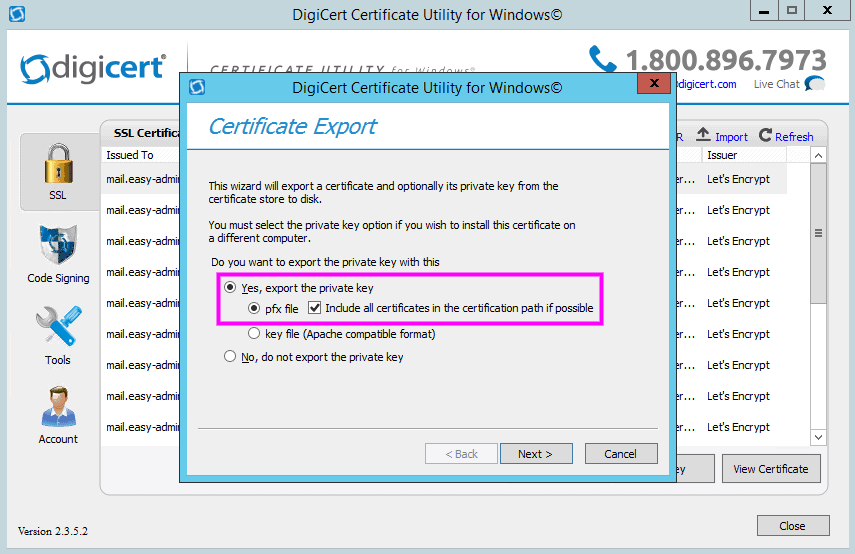
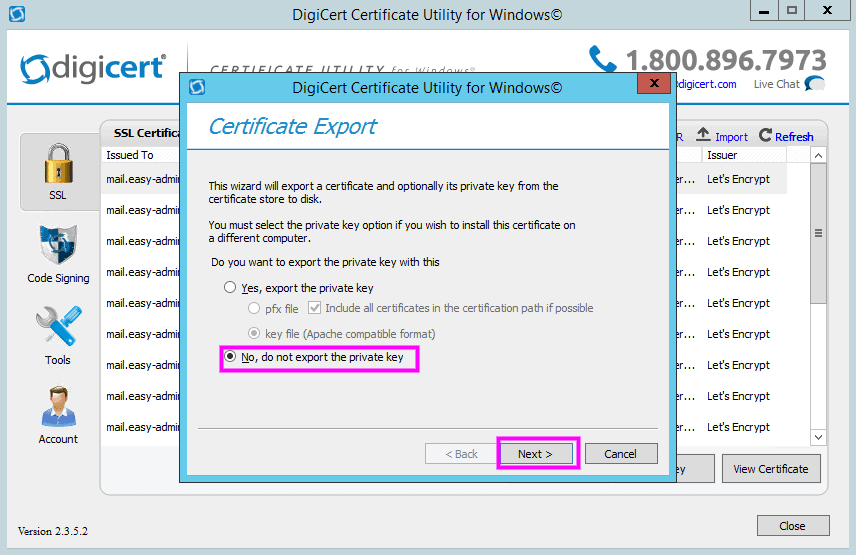
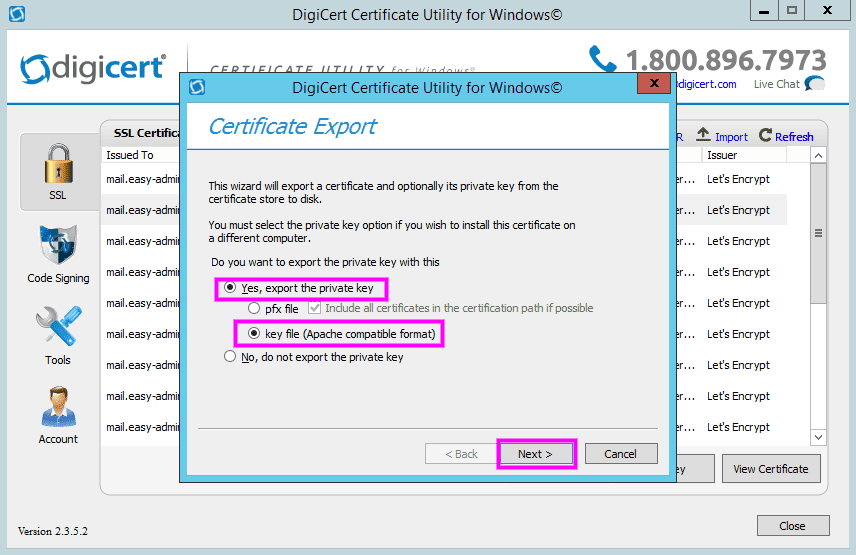
1. Yes, export the private key with this…

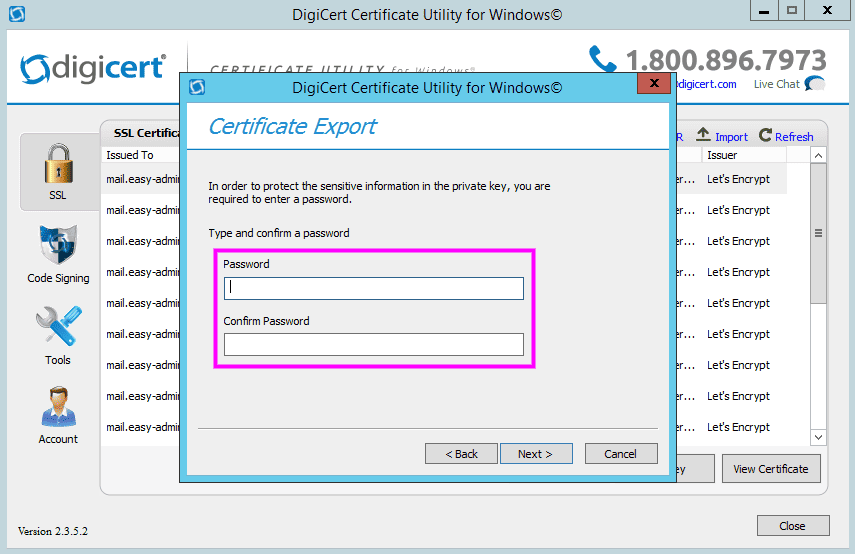
2. You must provide a password to your private key…

3. Save the Private Key… You will use this KEY file for Kerio Connect
4. Now export the certificate itself

Again save this file! This will generate the .cer for your Kerio Connect mail server.

You should have now in your directory those files…

Now let see in Kerio Connect what to do!

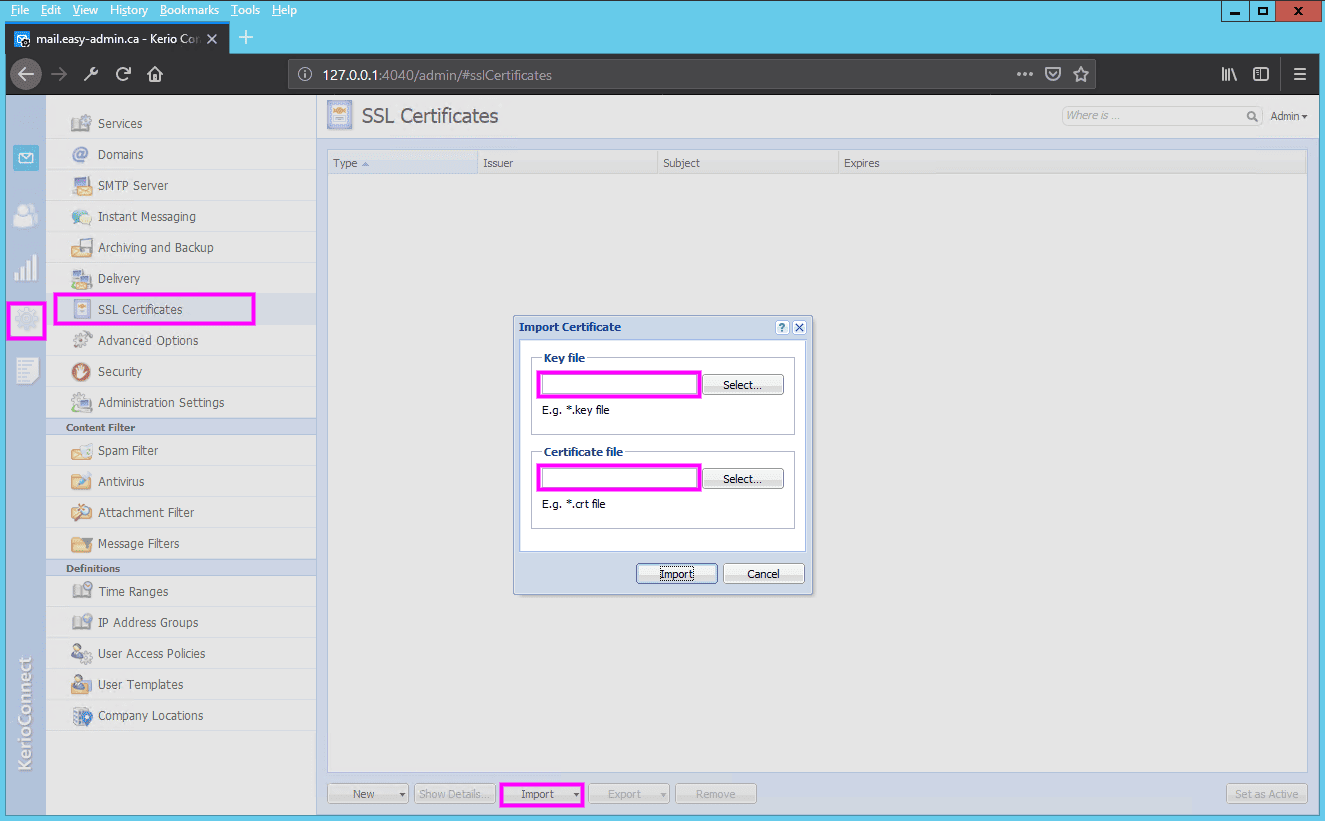
Now import your .key and .crt files into Kerio Connect SSL Certificate
You have now Kerio Connect using a Let’s Encrypt Certificate that will be valid for a period of 3 months. The down side of this is that you will have to manually repeat this every time the key expired or maybe not! Will see in 3 months 😉
Now your Kerio Connect mail server running on a Windows Server will be able to offer secured SSL email connection!
ENJOY!
There are two methods to encrypt your data:
In this post, I will explain how to encrypt your partitions using Linux Unified Key Setup-on-disk-format (LUKS) on your Linux based computer or laptop.
You need to install the following package. It contains cryptsetup, a utility for setting up encrypted filesystems using Device Mapper and the dm-crypt target. Debian / Ubuntu Linux user type the following apt-get command or apt command:
# apt-get install cryptsetup
OR
$ sudo apt install cryptsetup
Sample outputs:
Reading package lists... Done Building dependency tree Reading state information... Done The following additional packages will be installed: console-setup console-setup-linux cryptsetup-bin kbd keyboard-configuration xkb-data Suggested packages: dosfstools keyutils The following NEW packages will be installed: console-setup console-setup-linux cryptsetup cryptsetup-bin kbd keyboard-configuration xkb-data 0 upgraded, 7 newly installed, 0 to remove and 0 not upgraded. Need to get 3,130 kB of archives. After this operation, 13.2 MB of additional disk space will be used. Do you want to continue? [Y/n] y Get:1 http://deb.debian.org/debian stretch/main amd64 kbd amd64 2.0.3-2+b1 [343 kB] Get:2 http://deb.debian.org/debian stretch/main amd64 keyboard-configuration all 1.164 [644 kB] Get:3 http://deb.debian.org/debian stretch/main amd64 console-setup-linux all 1.164 [983 kB] Get:4 http://deb.debian.org/debian stretch/main amd64 xkb-data all 2.19-1 [648 kB] Get:5 http://deb.debian.org/debian stretch/main amd64 console-setup all 1.164 [117 kB] Get:6 http://deb.debian.org/debian stretch/main amd64 cryptsetup-bin amd64 2:1.7.3-4 [221 kB] Get:7 http://deb.debian.org/debian stretch/main amd64 cryptsetup amd64 2:1.7.3-4 [174 kB] Fetched 3,130 kB in 0s (7,803 kB/s) Preconfiguring packages ... Selecting previously unselected package kbd. (Reading database ... 22194 files and directories currently installed.) Preparing to unpack .../0-kbd_2.0.3-2+b1_amd64.deb ... Unpacking kbd (2.0.3-2+b1) ... Selecting previously unselected package keyboard-configuration. Preparing to unpack .../1-keyboard-configuration_1.164_all.deb ... Unpacking keyboard-configuration (1.164) ... Selecting previously unselected package console-setup-linux. Preparing to unpack .../2-console-setup-linux_1.164_all.deb ... Unpacking console-setup-linux (1.164) ... Selecting previously unselected package xkb-data. Preparing to unpack .../3-xkb-data_2.19-1_all.deb ... Unpacking xkb-data (2.19-1) ... Selecting previously unselected package console-setup. Preparing to unpack .../4-console-setup_1.164_all.deb ... Unpacking console-setup (1.164) ... Selecting previously unselected package cryptsetup-bin. Preparing to unpack .../5-cryptsetup-bin_2%3a1.7.3-4_amd64.deb ... Unpacking cryptsetup-bin (2:1.7.3-4) ... Selecting previously unselected package cryptsetup. Preparing to unpack .../6-cryptsetup_2%3a1.7.3-4_amd64.deb ... Unpacking cryptsetup (2:1.7.3-4) ... Setting up keyboard-configuration (1.164) ... Setting up xkb-data (2.19-1) ... Setting up kbd (2.0.3-2+b1) ... Processing triggers for systemd (232-25+deb9u1) ... Setting up cryptsetup-bin (2:1.7.3-4) ... Processing triggers for man-db (2.7.6.1-2) ... Setting up console-setup-linux (1.164) ... Created symlink /etc/systemd/system/sysinit.target.wants/keyboard-setup.service → /lib/systemd/system/keyboard-setup.service. Created symlink /etc/systemd/system/multi-user.target.wants/console-setup.service → /lib/systemd/system/console-setup.service. Setting up console-setup (1.164) ... Setting up cryptsetup (2:1.7.3-4) ... update-initramfs: deferring update (trigger activated) Processing triggers for systemd (232-25+deb9u1) ... Processing triggers for initramfs-tools (0.130) ... update-initramfs: Generating /boot/initrd.img-4.9.0-3-amd64 |
RHEL / CentOS / Oracle / Scientific Linux user type the following yum command:
# yum install cryptsetup-luks
OR Fedora Linux user use the dnf command:
# dnf install cryptsetup-luks
WARNING! The following command will remove all data on the partition that you are encrypting. You WILL lose all your information! So make sure you backup your data to an external source such as NAS or hard disk before typing any one of the following command.In this example, I’m going to encrpt /dev/xvdc. Type the following command:
# cryptsetup -y -v luksFormat /dev/xvdc
Sample outputs:
WARNING! ======== This will overwrite data on /dev/xvdc irrevocably. Are you sure? (Type uppercase yes): YES Enter LUKS passphrase: Verify passphrase: Command successful. |
This command initializes the volume, and sets an initial key or passphrase. Please note that the passphrase is not recoverable so do not forget it.Type the following command create a mapping:
# cryptsetup luksOpen /dev/xvdc backup2
Sample outputs:
Enter passphrase for /dev/xvdc:
You can see a mapping name /dev/mapper/backup2 after successful verification of the supplied key material which was created with luksFormat command extension:
# ls -l /dev/mapper/backup2
Sample outputs:
lrwxrwxrwx 1 root root 7 Oct 19 19:37 /dev/mapper/backup2 -> ../dm-0
You can use the following command to see the status for the mapping:
# cryptsetup -v status backup2
Sample outputs:
/dev/mapper/backup2 is active. type: LUKS1 cipher: aes-cbc-essiv:sha256 keysize: 256 bits device: /dev/xvdc offset: 4096 sectors size: 419426304 sectors mode: read/write Command successful.
You can dump LUKS headers using the following command:
# cryptsetup luksDump /dev/xvdc
Sample outputs:
LUKS header information for /dev/xvdc
Version: 1
Cipher name: aes
Cipher mode: xts-plain64
Hash spec: sha256
Payload offset: 4096
MK bits: 256
MK digest: 21 07 68 54 77 96 11 34 f2 ec 17 e9 85 8a 12 c3 1f 3e cf 5f
MK salt: 8c a6 3d 8c e9 de 16 fb 07 fd 8e d3 72 d7 db 94
7e e0 75 f9 e0 23 24 df 50 26 fb 92 f8 b5 dd 70
MK iterations: 222000
UUID: 4dd563a9-5bff-4fea-b51d-b4124f7185d1
Key Slot 0: ENABLED
Iterations: 2245613
Salt: 05 a8 b4 a2 54 f7 c6 ee 52 db 60 b6 12 7f 2f 53
3f 5d 2d 62 fb 5a b1 c3 52 da d5 5f 7b 2d 38 32
Key material offset: 8
AF stripes: 4000
Key Slot 1: DISABLED
Key Slot 2: DISABLED
Key Slot 3: DISABLED
Key Slot 4: DISABLED
Key Slot 5: DISABLED
Key Slot 6: DISABLED
Key Slot 7: DISABLED |
First, you need to write zeros to /dev/mapper/backup2 encrypted device. This will allocate block data with zeros. This ensures that outside world will see this as random data i.e. it protect against disclosure of usage patterns:
# dd if=/dev/zero of=/dev/mapper/backup2
The dd command may take many hours to complete. I suggest that you use pv command to monitor the progress:
# pv -tpreb /dev/zero | dd of=/dev/mapper/backup2 bs=128M
Sample outputs:
dd: error writing '/dev/mapper/backup2': No space left on device ] 200GiB 0:16:47 [ 203MiB/s] [ <=> ] 1600+1 records in 1599+1 records out 214746267648 bytes (215 GB, 200 GiB) copied, 1008.19 s, 213 MB/s
You can also pass the status=progress option to the dd command:
# dd if=/dev/zero of=/dev/mapper/backup2 status=progress
Sample outputs:
2133934592 bytes (2.1 GB, 2.0 GiB) copied, 142 s, 15.0 MB/s
Next, create a filesystem i.e. format filesystem, enter:
# mkfs.ext4 /dev/mapper/backup2
Sample outputs:
mke2fs 1.42.13 (17-May-2015) Creating filesystem with 52428288 4k blocks and 13107200 inodes Filesystem UUID: 1c71b0f4-f95d-46d6-93e0-cbd19cb95edb Superblock backups stored on blocks: 32768, 98304, 163840, 229376, 294912, 819200, 884736, 1605632, 2654208, 4096000, 7962624, 11239424, 20480000, 23887872 Allocating group tables: done Writing inode tables: done Creating journal (32768 blocks): done Writing superblocks and filesystem accounting information: done
To mount the new filesystem at /backup2, enter:
# mkdir /backup2
# mount /dev/mapper/backup2 /backup2
# df -H
# cd /backup2
# ls -l
Type the following commands:
# umount /backup2
# cryptsetup luksClose backup2
Type the following command:
# cryptsetup luksOpen /dev/xvdc backup2
# mount /dev/mapper/backup2 /backup2
# df -H
# mount
Sample outputs:

See shell script wrapper that opens LUKS partition and sets up a mapping for nas devices.
Yes, you can use the fsck command On LUKS based systems:
# umount /backup2
# fsck -vy /dev/mapper/backup2
# mount /dev/mapper/backup2 /backu2
See how to run fsck On LUKS (dm-crypt) based LVM physical volume for more details.
Type the following command
### see key slots, max -8 i.e. max 8 passwords can be setup for each device ####
# cryptsetup luksDump /dev/xvdc
# cryptsetup luksAddKey /dev/xvdc
Enter any passphrase: Enter new passphrase for key slot: Verify passphrase:
Remove or delete the old password:
# cryptsetup luksRemoveKey /dev/xvdc
Please note that you need to enter the old password / passphrase.
You can store files or store backups using following software:
This tutorial also available in video format:
You now have an encrypted partition for all of your data.
For more information see cryptsetup man page and read RHEL 6.x documentation.
Matrix is an open standard communication protocol for decentralized real time communication. Matrix is implemented as home servers which are distributed over the internet; hence there is no single point of control or failure. Matrix provides a RESTful HTTP API for creating and managing the distributed chat servers that includes sending and receiving messages, inviting and managing chat room members, maintaining user accounts, and providing advanced chat features such as VoIP and Video calls, etc. Matrix also establishes a secure synchronization between home servers which are distributed across the globe.
Synapse is the implementation of Matrix home server written by the Matrix team. The Matrix ecosystem consists of the network of many federated home servers distributed across the globe. A Matrix user uses a chat client to connect to the home server, which in turn connects to the Matrix network. Homeserver stores the chat history and the login information of that particular user.
In this tutorial, we will use matrix.example.com as the domain name used for Matrix Synapse. Replace all occurrences of matrix.example.com with your actual domain name you want to use for your Synapse home server.
Update your base system using the guide How to Update CentOS 7. Once your system is updated, proceed to install Python.
Matrix Synapse needs Python 2.7 to work. Python 2.7 comes preinstalled in all CentOS server instances. You can check the installed version of Python.
python -V
You should get a similar output.
[user@vultr ~]$ python -V
Python 2.7.5
Changing the default version of Python may break YUM repository manager. However, if you want the most recent version of Python, you can make an alternative install, without replacing the default Python.
Install the packages in the Development tools group that are required for compiling the installer files.
sudo yum groupinstall -y "Development tools"
Install a few more required dependencies.
sudo yum -y install libtiff-devel libjpeg-devel libzip-devel freetype-devel lcms2-devel libwebp-devel tcl-devel tk-devel redhat-rpm-config python-virtualenv libffi-devel openssl-devel
Install Python pip. Pip is the dependency manager for Python packages.
wget https://bootstrap.pypa.io/get-pip.py
sudo python get-pip.py
Create a virtual environment for your Synapse application. Python virtual environment is used to create an isolated virtual environment for a Python project. A virtual environment contains its own installation directories and doesn’t share libraries with global and other virtual environments.
sudo virtualenv -p python2.7 /opt/synapse
Provide the ownership of the directory to the current user.
sudo chown -R $USER:$USER /opt/synapse/
Now activate the virtual environment.
source /opt/synapse/bin/activate
Ensure that you have the latest version of pip and setuptools.
pip install --upgrade pip
pip install --upgrade setuptools
Install the latest version of Synapse using pip.
pip install https://github.com/matrix-org/synapse/tarball/master
The above command will take some time to execute as it pulls and installs the latest version of Synapse and all the dependencies from Github repository.
Synapse uses SQLite as the default database. SQLite stores the data in a database which is kept as a flat file on disk. Using SQLite is very simple, but not recommended for production as it is very slow compared to PostgreSQL.
PostgreSQL is an object relational database system. You will need to add the PostgreSQL repository in your system, as the application is not available in the default YUM repository.
sudo rpm -Uvh https://download.postgresql.org/pub/repos/yum/9.6/redhat/rhel-7-x86_64/pgdg-centos96-9.6-3.noarch.rpm
Install the PostgreSQL database server.
sudo yum -y install postgresql96-server postgresql96-contrib
Initialize the database.
sudo /usr/pgsql-9.6/bin/postgresql96-setup initdb
Edit the /var/lib/pgsql/9.6/data/pg_hba.conf to enable MD5 based authentication.
sudo nano /var/lib/pgsql/9.6/data/pg_hba.conf
Find the following lines and change peer to trust and idnet to md5.
# TYPE DATABASE USER ADDRESS METHOD
# "local" is for Unix domain socket connections only
local all all peer
# IPv4 local connections:
host all all 127.0.0.1/32 idnet
# IPv6 local connections:
host all all ::1/128 idnet
Once updated, the configuration should look like this.
# TYPE DATABASE USER ADDRESS METHOD
# "local" is for Unix domain socket connections only
local all all trust
# IPv4 local connections:
host all all 127.0.0.1/32 md5
# IPv6 local connections:
host all all ::1/128 md5
Start the PostgreSQL server and enable it to start automatically at boot.
sudo systemctl start postgresql-9.6
sudo systemctl enable postgresql-9.6
Change the password for the default PostgreSQL user.
sudo passwd postgres
Login.
sudo su - postgres
Create a new PostgreSQL user for Synapse.
createuser synapse
PostgreSQL provides the psql shell to run queries on the database. Switch to the PostgreSQL shell by running.
psql
Set a password for the newly created user for Synapse database.
ALTER USER synapse WITH ENCRYPTED password 'DBPassword';
Replace DBPassword with a strong password and make a note of it as we will use the password later. Create a new database for the PostgreSQL database.
CREATE DATABASE synapse ENCODING 'UTF8' LC_COLLATE='C' LC_CTYPE='C' template=template0 OWNER synapse;
Exit from the psql shell.
\q
Switch to the sudo user from current postgres user.
exit
You will also need to install the packages required for Synapse to communicate with the PostgreSQL database server.
sudo yum -y install postgresql-devel libpqxx-devel.x86_64
source /opt/synapse/bin/activate
pip install psycopg2
Synapse requires a configuration file before it can be started. The configuration file stores the server settings. Switch to the virtual environment and generate the configuration for Synapse.
source /opt/synapse/bin/activate
cd /opt/synapse
python -m synapse.app.homeserver --server-name matrix.example.com --config-path homeserver.yaml --generate-config --report-stats=yes
Replace matrix.example.com with your actual domain name and make sure that the server name is resolvable to the IP address of your Vultr instance. Provide --report-stats=yes if you want the servers to generate the reports, provide --report-stats=no to disable the generation of reports and statistics.
You should see a similar output.
(synapse)[user@vultr synapse]$ python -m synapse.app.homeserver --server-name matrix.example.com --config-path homeserver.yaml --generate-config --report-stats=yes
A config file has been generated in 'homeserver.yaml' for server name 'matrix.example.com' with corresponding SSL keys and self-signed certificates. Please review this file and customise it to your needs.
If this server name is incorrect, you will need to regenerate the SSL certificates
By default, the homeserver.yaml is configured to use a SQLite database. We need to modify it to use the PostgreSQL database we have created earlier.
Edit the newly created homeserver.yaml.
nano homeserver.yaml
Find the existing database configuration which uses SQLite3. Comment out the lines as shown below. Also, add the new database configuration for PostgreSQL. Make sure that you use the correct database credentials.
# Database configuration
#database:
# The database engine name
#name: "sqlite3"
# Arguments to pass to the engine
#args:
# Path to the database
#database: "/opt/synapse/homeserver.db"
database:
name: psycopg2
args:
user: synapse
password: DBPassword
database: synapse
host: localhost
cp_min: 5
cp_max: 10
Registration of a new user from a web interface is disabled by default. To enable registration, you can set enable_registration to True. You can also set a secret registration key, which allows anyone to register who has the secret key, even if registration is disabled.
enable_registration: False
registration_shared_secret: "YPPqCPYqCQ-Rj,ws~FfeLS@maRV9vz5MnnV^r8~pP.Q6yNBDG;"
Save the file and exit from the editor. Now you will need to register your first user. Before you can register a new user, though, you will need to start the application first.
source /opt/synapse/bin/activate && cd /opt/synapse
synctl start
You should see the following lines.
2017-09-05 11:10:41,921 - twisted - 131 - INFO - - SynapseSite starting on 8008
2017-09-05 11:10:41,921 - twisted - 131 - INFO - - Starting factory <synapse.http.site.SynapseSite instance at 0x44bbc68>
2017-09-05 11:10:41,921 - synapse.app.homeserver - 201 - INFO - - Synapse now listening on port 8008
2017-09-05 11:10:41,922 - synapse.app.homeserver - 442 - INFO - - Scheduling stats reporting for 3 hour intervals
started synapse.app.homeserver('homeserver.yaml')
Register a new Matrix user.
register_new_matrix_user -c homeserver.yaml https://localhost:8448
You should see the following.
(synapse)[user@vultr synapse]$ register_new_matrix_user -c homeserver.yaml https://localhost:8448
New user localpart [user]: admin
Password:
Confirm password:
Make admin [no]: yes
Sending registration request...
Success.
Finally, before you can use the Homeserver, you will need to allow port 8448 through the Firewall. Port 8448 is used as the secured federation port. Homeservers use this port to communicate with each other securely. You can also use the built-in Matrix web chat client through this port.
sudo firewall-cmd --permanent --zone=public --add-port=8448/tcp
sudo firewall-cmd --reload
You can now log in to the Matrix web chat client by going to https://matrix.example.com:8448 through your favorite browser. You will see a warning about the SSL certificate as the certificates used are self-signed. We will not use this web chat client as it is outdated and not maintained anymore. Just try to check if you can log in using the user account you just created.
Instead of using a self-signed certificate for securing federation port, we can use Let’s Encrypt free SSL. Let’s Encrypt free SSL can be obtained through the official Let’s Encrypt client called Certbot.
Install Certbot.
sudo yum -y install certbot
Adjust your firewall setting to allow the standard HTTP and HTTPS ports through the firewall. Certbot needs to make an HTTP connection to verify the domain authority.
sudo firewall-cmd --permanent --zone=public --add-service=http
sudo firewall-cmd --permanent --zone=public --add-service=https
sudo firewall-cmd --reload
To obtain certificates from Let’s Encrypt CA, you must ensure that the domain for which you wish to generate the certificates is pointed towards the server. If it is not, then make the necessary changes to the DNS records of your domain and wait for the DNS to propagate before making the certificate request again. Certbot checks the domain authority before providing the certificates.
Now use the built-in web server in Certbot to generate the certificates for your domain.
sudo certbot certonly --standalone -d matrix.example.com
The generated certificates are likely to be stored in /etc/letsencrypt/live/matrix.example.com/. The SSL certificate will be stored as fullchain.pem and the private key will be stored as privkey.pem.
Copy the certificates.
sudo cp /etc/letsencrypt/live/matrix.example.com/fullchain.pem /opt/synapse/letsencrypt-fullchain.pem
sudo cp /etc/letsencrypt/live/matrix.example.com/privkey.pem /opt/synapse/letsencrypt-privkey.pem
You will need to change the path to the certificates and keys from the homeserver.yaml file. Edit the configuration.
nano /opt/synapse/homeserver.yaml
Find the following lines and modify the path.
tls_certificate_path: "/opt/synapse/letsencrypt-fullchain.pem"
# PEM encoded private key for TLS
tls_private_key_path: "/opt/synapse/letsencrypt-privkey.pem"
Save the file and exit from the editor. Restart the Synapse server so that the changes can take effect.
source /opt/synapse/bin/activate && cd /opt/synapse
synctl restart
Let’s Encrypt certificates are due to expire in 90 days, so it is recommended that you setup auto renewal for the certificates using cron jobs. Cron is a system service which is used to run periodic tasks.
Create a new script to renew certificates and copy the renewed certificates to the Synapse directory.
sudo nano /opt/renew-letsencypt.sh
Populate the file.
#!/bin/sh
/usr/bin/certbot renew --quiet --nginx
cp /etc/letsencrypt/live/matrix.example.com/fullchain.pem /opt/synapse/letsencrypt-fullchain.pem
cp /etc/letsencrypt/live/matrix.example.com/privkey.pem /opt/synapse/letsencrypt-privkey.pem
Provide the execution permission.
sudo chmod +x /opt/renew-letsencypt.sh
Open the cron job file.
sudo crontab -e
Add the following line at the end of the file.
30 5 * * 1 /opt/renew-letsencypt.sh
The above cron job will run every Monday at 5:30 AM. If the certificate is due to expire, it will automatically renew them.
Now you can visit https://matrix.example.com:8448. You will see that there is no SSL warning before connection.
Apart from the secured federation port 8448, Synapse also listens to the unsecured client port 8008. We will now configure Nginx as a reverse proxy to the Synapse application.
sudo yum -y install nginx
Create a new configuration file.
sudo nano /etc/nginx/conf.d/synapse.conf
Populate the file with the following content.
server {
listen 80;
server_name matrix.example.com;
return 301 https://$host$request_uri;
}
server {
listen 443;
server_name matrix.example.com;
ssl_certificate /etc/letsencrypt/live/matrix.example.com/fullchain.pem;
ssl_certificate_key /etc/letsencrypt/live/matrix.example.com/privkey.pem;
ssl on;
ssl_session_cache builtin:1000 shared:SSL:10m;
ssl_protocols TLSv1 TLSv1.1 TLSv1.2;
ssl_ciphers HIGH:!aNULL:!eNULL:!EXPORT:!CAMELLIA:!DES:!MD5:!PSK:!RC4;
ssl_prefer_server_ciphers on;
access_log /var/log/nginx/synapse.access.log;
location /_matrix {
proxy_pass http://localhost:8008;
proxy_set_header X-Forwarded-For $remote_addr;
}
}
Restart and enable Nginx to automatically start at boot time.
sudo systemctl restart nginx
sudo systemctl enable nginx
Finally, you can verify if Synapse can be accessed through the reverse proxy.
curl https://matrix.example.com/_matrix/key/v2/server/auto
You should get similar output.
[user@vultr ~]$ curl https://matrix.example.com/_matrix/key/v2/server/auto
{"old_verify_keys":{},"server_name":"matrix.example.com","signatures":{"matrix.example.com":{"ed25519:a_ffMf":"T/Uq/UN5vyc4w7v0azALjPIJeZx1vQ+HC6ohUGkTSqiFI4WI/ojGpb2763arwSSQLr/tP/2diCi1KLU2DEnOCQ"}},"tls_fingerprints":[{"sha256":"eorhQj/kubI2PEQZyBZvGV7K1x3EcQ7j/AO2MtZMplw"}],"valid_until_ts":1504876080512,"verify_keys":{"ed25519:a_ffMf":{"key":"Gc1hxkpPmQv71Cvjyk+uzR5UtrpmgV/UwlsLtosawEs"}}}
It is recommended to use the Systemd service to manage the Synapse server process. Using Systemd will ensure that the server is automatically started on system startup and failures.
Create a new Systemd service file.
sudo nano /etc/systemd/system/matrix-synapse.service
Populate the file.
[Unit]
Description=Matrix Synapse service
After=network.target
[Service]
Type=forking
WorkingDirectory=/opt/synapse/
ExecStart=/opt/synapse/bin/synctl start
ExecStop=/opt/synapse/bin/synctl stop
ExecReload=/opt/synapse/bin/synctl restart
Restart=always
StandardOutput=syslog
StandardError=syslog
SyslogIdentifier=synapse
[Install]
WantedBy=multi-user.target
Now you can quickly start the Synapse server.
sudo systemctl start matrix-synapse
To stop or restart the server using following commands.
sudo systemctl stop matrix-synapse
sudo systemctl restart matrix-synapse
You can check the status of service.
sudo systemctl status matrix-synapse
Matrix Synapse server is now installed and configured on your server. As the built-in web client for Matrix is outdated, you can choose from the variety of the client applications available for chat. Riot is the most popular chat client, which is available on almost all platforms. You can use the hosted version of Riot’s web chat client, or you can also host a copy of it on your own server. Apart from this, you can also use Riot’s desktop and mobile chat clients, which are available for Windows, Mac, Linux, IOS and Android.
If you wish to host your own copy of Riot web client, you can read further for the instructions to install Riot on your server. For hosted, desktop and mobile client, you can use your username and password to login directly to your homeserver. Just choose my Matrix ID from the dropdown menu of the Sign In option and provide the username and password you have created during the registration of a new user. Click on the Custom server and use the domain name of your Synapse instance. As we have already configured Nginx, we can just use https://matrix.example.com as the Home server and https://matrix.org as Identity server URL.
Riot is also open source and free to host on your own server. It does not require any database or dependencies. As we already have an Nginx server running, we can host it on the same server.
The domain or subdomain you are using for Synapse and Riot must be different to avoid cross-site scripting. However, you can use two subdomains of the same domain. In this tutorial, we will be using
riot.example.comas the domain for the Riot application. Replace all occurrence ofriot.example.comwith your actual domain or subdomain for the Riot application.
Download Riot on your server.
cd /opt/
sudo wget https://github.com/vector-im/riot-web/releases/download/v0.12.3/riot-v0.12.3.tar.gz
You can always find the link to the latest version on Riot’s Github.
Extract the archive.
sudo tar -xzf riot-v*.tar.gz
Rename the directory for handling convenience.
sudo mv riot-v*/ riot/
Because we have already installed Certbot, we can generate the certificates directly. Make sure that the domain or subdomain you are using is pointed towards the server.
sudo systemctl stop nginx
sudo certbot certonly --standalone -d riot.example.com
The generated certificates are likely to be stored in the /etc/letsencrypt/live/riot.example.com/ directory.
Create a virtual host for the Riot application.
sudo nano /etc/nginx/conf.d/riot.conf
Populate the file.
server {
listen 80;
server_name riot.example.com;
return 301 https://$host$request_uri;
}
server {
listen 443;
server_name riot.example.com;
ssl_certificate /etc/letsencrypt/live/riot.example.com/fullchain.pem;
ssl_certificate_key /etc/letsencrypt/live/riot.example.com/privkey.pem;
ssl on;
ssl_session_cache builtin:1000 shared:SSL:10m;
ssl_protocols TLSv1 TLSv1.1 TLSv1.2;
ssl_ciphers HIGH:!aNULL:!eNULL:!EXPORT:!CAMELLIA:!DES:!MD5:!PSK:!RC4;
ssl_prefer_server_ciphers on;
root /opt/riot;
index index.html index.htm;
location / {
try_files $uri $uri/ =404;
}
access_log /var/log/nginx/riot.access.log;
}
Copy the sample configuration file.
sudo cp /opt/riot/config.sample.json /opt/riot/config.json
Now edit the configuration file to make few changes.
sudo nano /opt/riot/config.json
Find the following lines.
"default_hs_url": "https://matrix.org",
"default_is_url": "https://vector.im",
Replace the value of the default home server URL with the URL of your Matrix server. For the identity server URL, you can use the default option, or you can also provide its value to the Matrix identity server, which is https://matrix.org.
"default_hs_url": "https://matrix.example.com",
"default_is_url": "https://matrix.org",
Save the file and exit. Provide ownership of the files to the Nginx user.
sudo chown -R nginx:nginx /opt/riot/
Restart Nginx.
sudo systemctl restart nginx
You can access Riot on https://riot.example.com. You can now log in using the username and password which you have created earlier. You can connect using the default server as we have already changed the default Matrix server for our application.
You now have a Matrix Synapse home server up and running. You also have a hosted copy of Riot, which you can use to send a message to other people using their Matrix ID, email or mobile number. Start by creating a chat room on your server and invite your friends on Matrix to join the chat room you have created.
Have fun!

Redis is an open-source, in-memory data structure store which excels at caching. A non-relational database, Redis is known for its flexibility, performance, scalability, and wide language support.
Redis was designed for use by trusted clients in a trusted environment, and has no robust security features of its own. Redis does, however, have a few security features that include a basic unencrypted password and command renaming and disabling. This tutorial provides instructions on how to configure these security features, and also covers a few other settings that can boost the security of a standalone Redis installation on CentOS 7.
To follow along with this tutorial, you will need:
With those prerequisites in place, we are ready to install Redis and perform some initial configuration tasks.
Before we can install Redis, we must first add Extra Packages for Enterprise Linux (EPEL) repository to the server’s package lists. EPEL is a package repository containing a number of open-source add-on software packages, most of which are maintained by the Fedora Project.
We can install EPEL using yum:
sudo yum install epel-releaseOnce the EPEL installation has finished you can install Redis, again using yum:
sudo yum install redis -y
This may take a few minutes to complete. After the installation finishes, start the Redis service:
sudo systemctl start redis.serviceIf you’d like Redis to start on boot, you can enable it with the enable command:
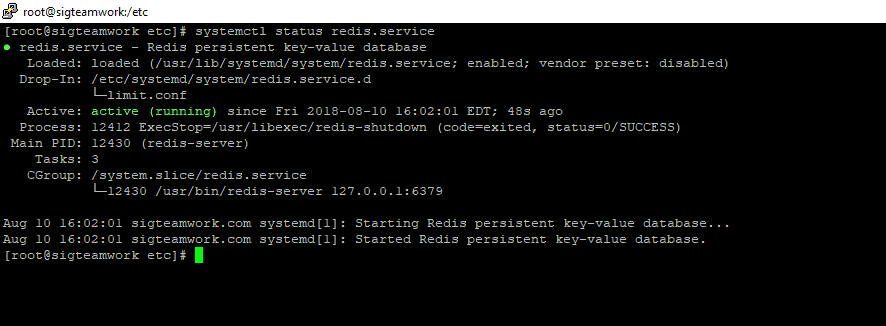
sudo systemctl enable redisYou can check Redis’s status by running the following:
sudo systemctl status redis.service● redis.service - Redis persistent key-value database
Loaded: loaded (/usr/lib/systemd/system/redis.service; disabled; vendor preset: disabled)
Drop-In: /etc/systemd/system/redis.service.d
└─limit.conf
Active: active (running) since Thu 2018-03-01 15:50:38 UTC; 7s ago
Main PID: 3962 (redis-server)
CGroup: /system.slice/redis.service
└─3962 /usr/bin/redis-server 127.0.0.1:6379Once you’ve confirmed that Redis is indeed running, test the setup with this command:
redis-cli pingThis should print PONG as the response. If this is the case, it means you now have Redis running on your server and we can begin configuring it to enhance its security.
An effective way to safeguard Redis is to secure the server it’s running on. You can do this by ensuring that Redis is bound only to either localhost or to a private IP address and that the server has a firewall up and running.
However, if you chose to set up a Redis cluster using this tutorial, then you will have updated the configuration file to allow connections from anywhere, which is not as secure as binding to localhost or a private IP.
To remedy this, open the Redis configuration file for editing:
sudo vi /etc/redis.confLocate the line beginning with bind and make sure it’s uncommented:
bind 127.0.0.1
If you need to bind Redis to another IP address (as in cases where you will be accessing Redis from a separate host) we strongly encourage you to bind it to a private IP address. Binding to a public IP address increases the exposure of your Redis interface to outside parties.
bind your_private_ip
If you’ve followed the prerequisites and installed firewalld on your server and you do not plan to connect to Redis from another host, then you do not need to add any extra firewall rules for Redis. After all, any incoming traffic will be dropped by default unless explicitly allowed by the firewall rules. Since a default standalone installation of Redis server is listening only on the loopback interface (127.0.0.1 or localhost), there should be no concern for incoming traffic on its default port.
If, however, you do plan to access Redis from another host, you will need to make some changes to your firewalld configuration using the firewall-cmd command. Again, you should only allow access to your Redis server from your hosts by using their private IP addresses in order to limit the number of hosts your service is exposed to.
To begin, add a dedicated Redis zone to your firewalld policy:
sudo firewall-cmd --permanent --new-zone=redisThen, specify which port you’d like to have open. Redis uses port 6397 by default:
sudo firewall-cmd --permanent --zone=redis --add-port=6379/tcpNext, specify any private IP addresses which should be allowed to pass through the firewall and access Redis:
sudo firewall-cmd --permanent --zone=redis --add-source=client_server_private_IPAfter running those commands, reload the firewall to implement the new rules:
sudo firewall-cmd --reloadUnder this configuration, when the firewall sees a packet from your client’s IP address, it will apply the rules in the dedicated Redis zone to that connection. All other connections will be processed by the default public zone. The services in the default zone apply to every connection, not just those that don’t match explicitly, so you don’t need to add other services (e.g. SSH) to the Redis zone because those rules will be applied to that connection automatically.
If you chose to set up a firewall using Iptables, you will need to grant your secondary hosts access to the port Redis is using with the following commands:
Make sure to save your Iptables firewall rules using the mechanism provided by your distribution.
Keep in mind that using either firewall tool will work. What’s important is that the firewall is up and running so that unknown individuals cannot access your server. In the next step, we will configure Redis to only be accessible with a strong password.
If you installed Redis using the How To Configure a Redis Cluster on CentOS 7 tutorial, you should have configured a password for it. At your discretion, you can make a more secure password now by following this section. If you haven’t set up a password yet, instructions in this section show how to set the database server password.
Configuring a Redis password enables one of its built-in security features — the auth command — which requires clients to authenticate before being allowed access to the database. Like the bind setting, the password is configured directly in Redis’s configuration file, /etc/redis.conf. Reopen that file:
sudo vi /etc/redis.confScroll to the SECURITY section and look for a commented directive that reads:
# requirepass foobared
Uncomment it by removing the #, and change foobared to a very strong password of your choosing. Rather than make up a password yourself, you may use a tool like apg or pwgen to generate one. If you don’t want to install an application just to generate a password, though, you may use the command below.
Note that entering this command as written will generate the same password every time. To create a password different from the one that this would generate, change the word in quotes to any other word or phrase.
echo "easy-admin" | sha256sumThough the generated password will not be pronounceable, it is a very strong and very long one, which is exactly the type of password required for Redis. After copying and pasting the output of that command as the new value for requirepass, it should read:
requirepass password_copied_from_output
If you prefer a shorter password, use the output of the command below instead. Again, change the word in quotes so it will not generate the same password as this one:
echo "easy-admin" | sha1sumAfter setting the password, save and close the file then restart Redis:
sudo systemctl restart redis.serviceTo test that the password works, access the Redis command line:
redis-cliThe following is a sequence of commands used to test whether the Redis password works. The first command tries to set a key to a value before authentication.
127.0.0.1:6379> set key1 10
That won’t work as we have not yet been authenticated, so Redis returns an error.
(error) NOAUTH Authentication required.The following command authenticates with the password specified in the Redis configuration file.
127.0.0.1:6379> auth your.redis.password
Redis will acknowledge that we have been authenticated:
OKAfter that, running the previous command again should be successful:
127.0.0.1:6379> set key1 10
OKThe get key1 command queries Redis for the value of the new key.
127.0.0.1:6379> quit
It should now be very difficult for unauthorized users to access your Redis installation. Please note, though, that without SSL or a VPN the unencrypted password will still be visible to outside parties if you’re connecting to Redis remotely.
Next, we’ll look at renaming Redis commands to further protect Redis from malicious actors.
The other security feature built into Redis allows you to rename or completely disable certain commands that are considered dangerous. When run by unauthorized users, such commands can be used to reconfigure, destroy, or otherwise wipe your data. Some of the commands that are known to be dangerous include:
FLUSHDBFLUSHALLKEYSPEXPIREDELCONFIGSHUTDOWNBGREWRITEAOFBGSAVESAVESPOPSREM RENAME DEBUGThis is not a comprehensive list, but renaming or disabling all of the commands in that list is a good starting point.
Whether you disable or rename a command is site-specific. If you know you will never use a command that can be abused, then you may disable it. Otherwise, you should rename it instead.
Like the authentication password, renaming or disabling commands is configured in the SECURITY section of the /etc/redis.conf file. To enable or disable Redis commands, open the configuration file for editing one more time:
sudo vi /etc/redis.confNOTE: These are examples. You should choose to disable or rename the commands that make sense for you. You can check the commands for yourself and determine how they might be misused at redis.io/commands.
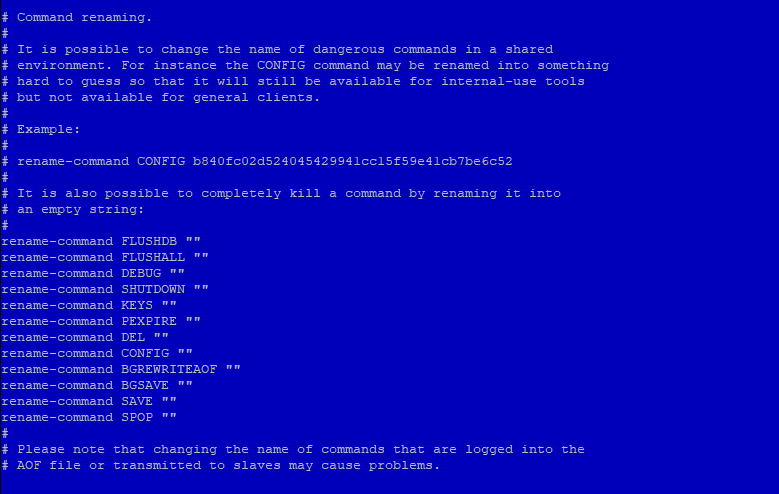
To disable or kill a command, simply rename it to an empty string, as shown below:
# It is also possible to completely kill a command by renaming it into
# an empty string:
#
rename-command FLUSHDB ""
rename-command FLUSHALL ""
rename-command DEBUG ""
To rename a command, give it another name like in the examples below. Renamed commands should be difficult for others to guess, but easy for you to remember:
rename-command CONFIG ""
rename-command SHUTDOWN SHUTDOWN_MENOT
rename-command CONFIG ASC12_CONFIG

Save your changes and close the file, and then apply the change by restarting Redis:
sudo systemctl restart redis.serviceTo test the new command, enter the Redis command line:
redis-cliAuthenticate yourself using the password you defined earlier:
127.0.0.1:6379> auth your_redis_password
OKAssuming that you renamed the CONFIG command to ASC12_CONFIG, attempting to use the config command should fail.
127.0.0.1:6379> config get requirepass
(error) ERR unknown command 'config'Calling the renamed command should be successful (it’s case-insensitive):
127.0.0.1:6379> asc12_config get requirepass
1) "requirepass"
2) "your_redis_password"Finally, you can exit from redis-cli:
127.0.0.1:6379> exit
Note that if you’re already using the Redis command line and then restart Redis, you’ll need to re-authenticate. Otherwise, you’ll get this error if you type a command:
NOAUTH Authentication required.Regarding renaming commands, there’s a cautionary statement at the end of the SECURITY section in the /etc/redis.conf file, which reads:
Please note that changing the name of commands that are logged into the AOF file or transmitted to slaves may cause problems.
That means if the renamed command is not in the AOF file, or if it is but the AOF file has not been transmitted to slaves, then there should be no problem. Keep that in mind as you’re renaming commands. The best time to rename a command is when you’re not using AOF persistence or right after installation (that is, before your Redis-using application has been deployed).
When you’re using AOF and dealing with a master-slave installation, consider this answer from the project’s GitHub issue page. The following is a reply to the author’s question:
The commands are logged to the AOF and replicated to the slave the same way they are sent, so if you try to replay the AOF on an instance that doesn’t have the same renaming, you may face inconsistencies as the command cannot be executed (same for slaves).
The best way to handle renaming in cases like that is to make sure that renamed commands are applied to all instances of master-slave installations.
In this step, we’ll consider a couple of ownership and permissions changes you can make to improve the security profile of your Redis installation. This involves making sure that only the user that needs to access Redis has permission to read its data. That user is, by default, the redis user.
You can verify this by grep-ing for the Redis data directory in a long listing of its parent directory. The command and its output are given below.
ls -l /var/lib | grep redisdrwxr-xr-x 2 redis redis 4096 Aug 6 09:32 redisYou can see that the Redis data directory is owned by the redis user, with secondary access granted to the redis group. This ownership setting is secure, but the folder’s permissions (which are set to 755) are not. To ensure that only the Redis user has access to the folder and its contents, change the permissions setting to 770:
sudo chmod 770 /var/lib/redisThe other permission you should change is that of the Redis configuration file. By default, it has a file permission of 644 and is owned by root, with secondary ownership by the root group:
ls -l /etc/redis.conf-rw-r--r-- 1 root root 30176 Aug 10 2018 /etc/redis.confThat permission (644) is world-readable. This presents a security issue as the configuration file contains the unencrypted password you configured in Step 4, meaning we need to change the configuration file’s ownership and permissions. Ideally, it should be owned by the redis user, with secondary ownership by the redis group. To do that, run the following command:
sudo chown redis:redis /etc/redis.confThen change the permissions so that only the owner of the file can read and/or write to it:
sudo chmod 660 /etc/redis.confYou may verify the new ownership and permissions using:
ls -l /etc/redis.conftotal 40
-rw------- 1 redis redis 29716 Sep 22 18:32 /etc/redis.confFinally, restart Redis:
sudo systemctl restart redis.serviceCheck the status of redis.service
systemctl status redis.service

Congratulations, your Redis installation should now be more secure!
SIGPROTEK and SIGTEAMWORK are small form factor network appliance built for use as a firewall router or other application and is compatible with a variety of open source projects.
The unit is small and it’s fanless, so there’s no noise. The 4 Intel NIC ports are proven to be the most reliable for use with high throughput packet switching applications and the units can route at gigabit wire speeds.

SIGPROTEK SECURITY FIREWALL SYSTEM
SPECIFICATIONS
– Quad Core J1900 CPU 2.0GHZ
– 4 LAN Gigabit Network
– 8 GB DDR3 Memory
– 2 USB 3.0 Ports
– 2 USB 2.0 Ports
– 1 VGA Connector
– mSATA 64GB SSD *3ME MLC
– Non-Industrial mSATA up to 1TB
* Industrial embedded for Aerospace industries
– Firewall: PFSENSE / CLEAROS / UnTANGLE
– Optional WIFI Hi-Speed Router

SIGTEAMWORK COMMUNICATION SYSTEM
SPECIFICATIONS
– Quad Core J1900 CPU 2.0GHZ
– 4 LAN Gigabit Network
– 8 GB DDR3 Memory
– 2 USB 3.0 Ports
– 2 USB 2.0 Ports
– 1 VGA Connector
– mSATA 64GB SSD *3ME MLC
– Non-Industrial mSATA up to 1TB
* Industrial embedded for Aerospace industries
– Up to 5TB 2.5″ SATA3 Storage
– CENTOS 7.x
– APACHE / Webmin / CSF
– FREE Integrated Dynamic IP Server
Developed by SIG INC. (Montreal) CANADA
https://www.sigsolution.net
IT DEV Dejan Janosevic (Belgrade) SERBIA
http://dejanjanosevic.com/
This guide will walk you through the installation and setup of the Dynamic Update Client (DUC) on a computer running Linux. If you are using Ubuntu or Debian Linux please check our support site for guides on their specific setup.
Installing the Client
The below commands should be executed from a terminal window (command prompt) after logging in as the “root” user. You can become the root user from the command line by entering “sudo su -” followed by the root password on your machine.
Note: If you do not have privileges on the machine you are on, you may add the “sudo” command in front of steps (5 and 6).
If you get “make not found” or “missing gcc” then you do not have the gcc compiler tools on your machine. You will need to install these in order to proceed.
To Configure the Client
As root again (or with sudo) issue the below command:
You will then be prompted for your username and password for No-IP, as well as which hostnames you wish to update. Be careful, one of the questions is “Do you wish to update ALL hosts”. If answered incorrectly this could affect hostnames in your account that are pointing at other locations.
Now that the client is installed and configured, you just need to launch it. Simply issue this final command to launch the client in the background:
yum install ddclient
There are some dependencies, however all of them should be installable from mainstream repos:
bash perl perl-Digest-SHA1 perl-Getopt-Long perl perl-IO-Socket-SSL shadow-utils systemd
Now that ddclient and it’s dependencies are installed it is time to edit it’s config file /etc/ddclient.conf:
[root@easy ~]# cat /etc/ddclient.conf ###################################################################### ### (CC BY 3.0 IE) int21hex at https://laptopdoctor.wordpress.com/ ### Based on https://www.andreagrandi.it/ blog post ### /etc/ddclient.conf ### Setup Environment daemon=900 # go easy on the server syslog=yes #mail-failure=root # no place like /dev/null, leaving in for later pid=/var/run/ddclient/ddclient.pid ssl=yes ####################################################################### ### Workaround for ddclient to work with no-ip.com ### Grab external IP dyndns.com, use that for connection to noip.com ### Your $dynamicFQDN should be already setup protocol=dyndns2 use=web, web=checkip.dyndns.com/, web-skip='IP Address' server=dynupdate.no-ip.com login=$YourUsername password=$YourPasswd $dynamicFQDN mx=mail.$dynamicFQDN backupmx=no #wildcard=yes|no # left for later
It’s not bad idea to update /etc/hosts with new domain name:
[root@easy ~]# cat /etc/hosts 127.0.0.1 localhost.locadomain localhost 127.0.0.1 customname.localdom customname 192.168.xxx.xxx $dynamicFQDN
With that out of the way, it is time to set up and enable system service:
[root@easy ~]# systemctl enable ddclient.service [root@easy ~]# systemctl start ddclient [root@easy ~]# systemctl status ddclient ● ddclient.service - A Perl Client Used To Update Dynamic DNS Loaded: loaded (/usr/lib/systemd/system/ddclient.service; enabled; vendor preset: disabled) Active: active (running) since Sat 2017-07-01 21:47:42 IST; 2h 47min ago Main PID: 1629 (ddclient - slee) CGroup: /system.slice/ddclient.service └─1629 ddclient - sleeping for 300 seconds Jul 01 21:47:40 vger systemd[1]: Starting A Perl Client Used To Update Dynamic DNS... Jul 01 21:47:42 vger systemd[1]: Started A Perl Client Used To Update Dynamic DNS.
You can test if it’s working in couple ways. Noip.com dashboard will tell you if hostname is active
After ports are forwarded you can try accessing any of the services running on the server, like Webmin!
https://yourname.no-ip
Third option is to check DNS records for your $dynamicFQDN:
[root@easy ~]# nslookup $dynamicFQDN Server: 89.101.160.4 Address: 89.101.160.4#53 Non-authoritative answer: Name: $dynamicFQDN Address: xxx.xxx.xxx.xxx
Enjoy!
You need to install the DOM extension. You can do so on CentOS using:
For php 5.x
yum install php-xmlFor php 7.1
yum install php71w-xmlFor php 7.2
yum install php7.2-xmlRestart Apache!
systemctl restart httpdEnjoy!
Enjoy!
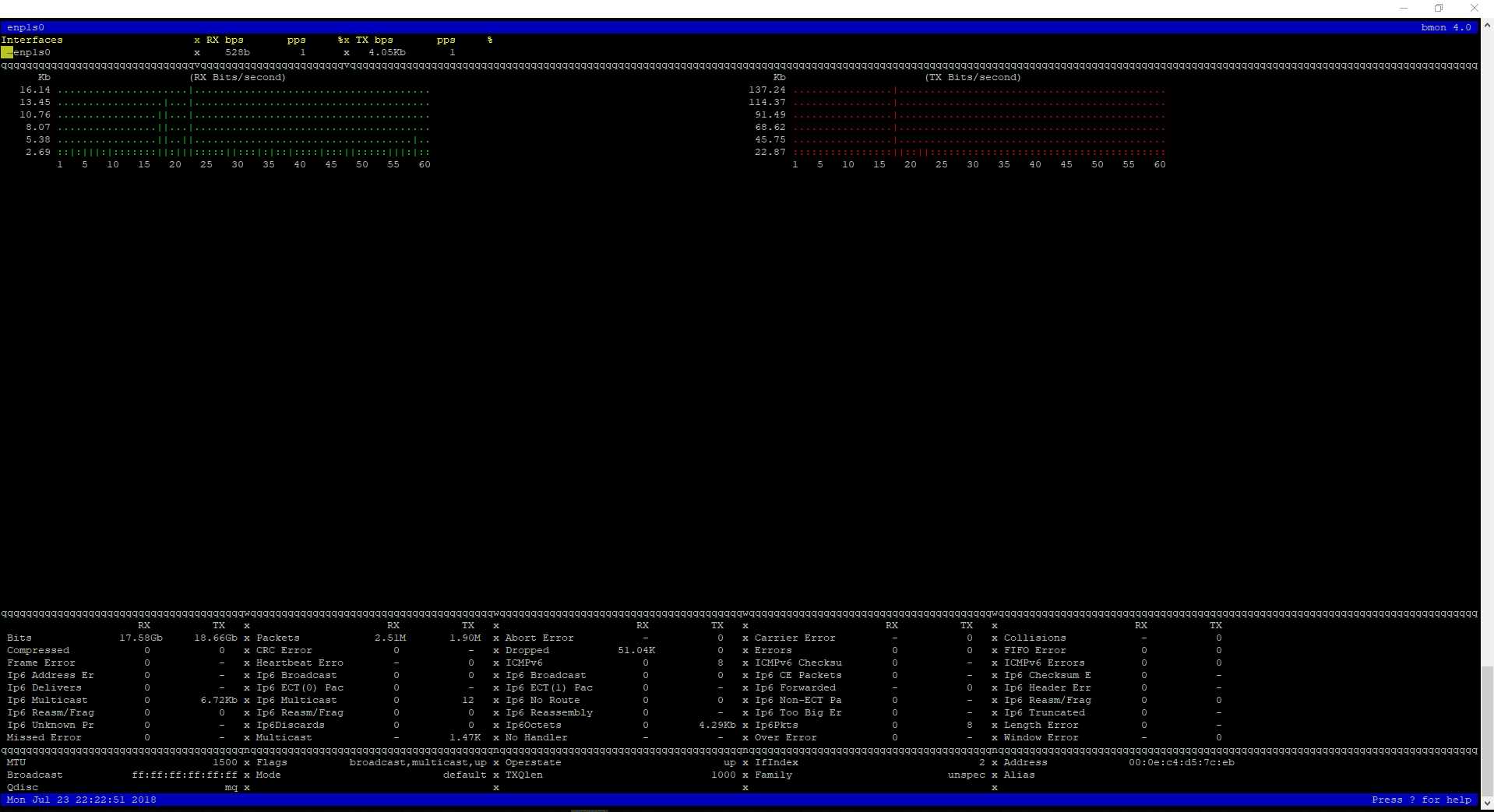
$ git clone https://github.com/tgraf/bmon.git $ cd bmon $ sudo yum install make libconfuse-devel libnl3-devel libnl-route3-devel ncurses-devel $ sudo ./autogen.sh $ sudo ./configure $ sudo make $ sudo make install
To start bmon $ bmon

Enjoy!
1. First, install Gnome GUI on CentOS 7 / RHEL 7
2. xrdp is available in EPEL repository, Install and configure EPEL repository
rpm -Uvh https://dl.fedoraproject.org/pub/epel/epel-release-latest-7.noarch.rpm
Use YUM command to install xrdp package on CentOS 7 / RHEL 7
yum -y install xrdp tigervnc-server
Once xrdp is installed, start the xrdp service using the following command
systemctl start xrdp
xrdp should now be listening on 3389. Confirm this by using netstat command
netstat -antup | grep xrdp
Output:
tcp 0 0 0.0.0.0:3389 0.0.0.0:* LISTEN 1508/xrdp tcp 0 0 127.0.0.1:3350 0.0.0.0:* LISTEN 1507/xrdp-sesman
By default, xrdp service won’t start automatically after a system reboot. Run the following command in the terminal to enable the service at system startup
systemctl enable xrdp
Configure the firewall to allow RDP connection from external machines. The following command will add the exception for RDP port (3389)
firewall-cmd --permanent --add-port=3389/tcp firewall-cmd --reload
Configure SELinux
chcon --type=bin_t /usr/sbin/xrdp chcon --type=bin_t /usr/sbin/xrdp-sesman
Now take RDP from any windows machine using Remote Desktop Connection. Enter the ip address of Linux server in the computer field and then click on connect
You may need to ignore the warning of RDP certificate name mismatch
You would be asked to enter the username and password. You can either use root or any user that you have it on the system. Make sure you use module “Xvnc“
If you click ok, you will see the processing. In less than a half minute, you will get a desktop
Enjoy!
1. Resizing of images (cropping if needed) and upload via FTP into /image/catalog/Galleries/mb-events
2. Design > Banners > Add New (manually insert all images in EN and FR)
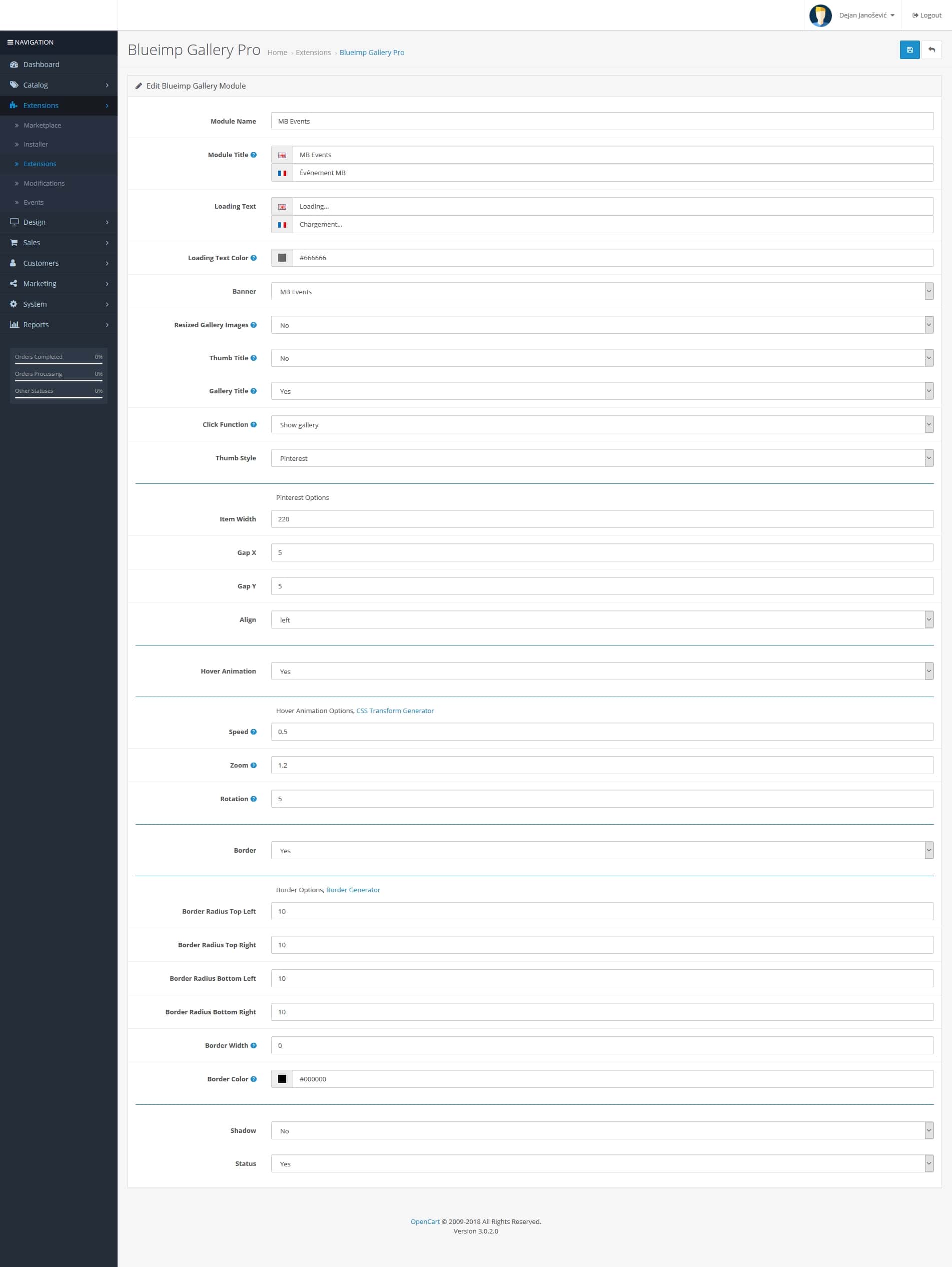
3. Extensions > Extensions > Modules > Blueimp Gallery Pro > Add New (button) and make settings according to previous gallery made (or the image 1 attached after this text)
4. Catalog > Information > Add New, fill the titles and meta tag titles FR and EN, insert SEO keywords (those are friendly URLs)
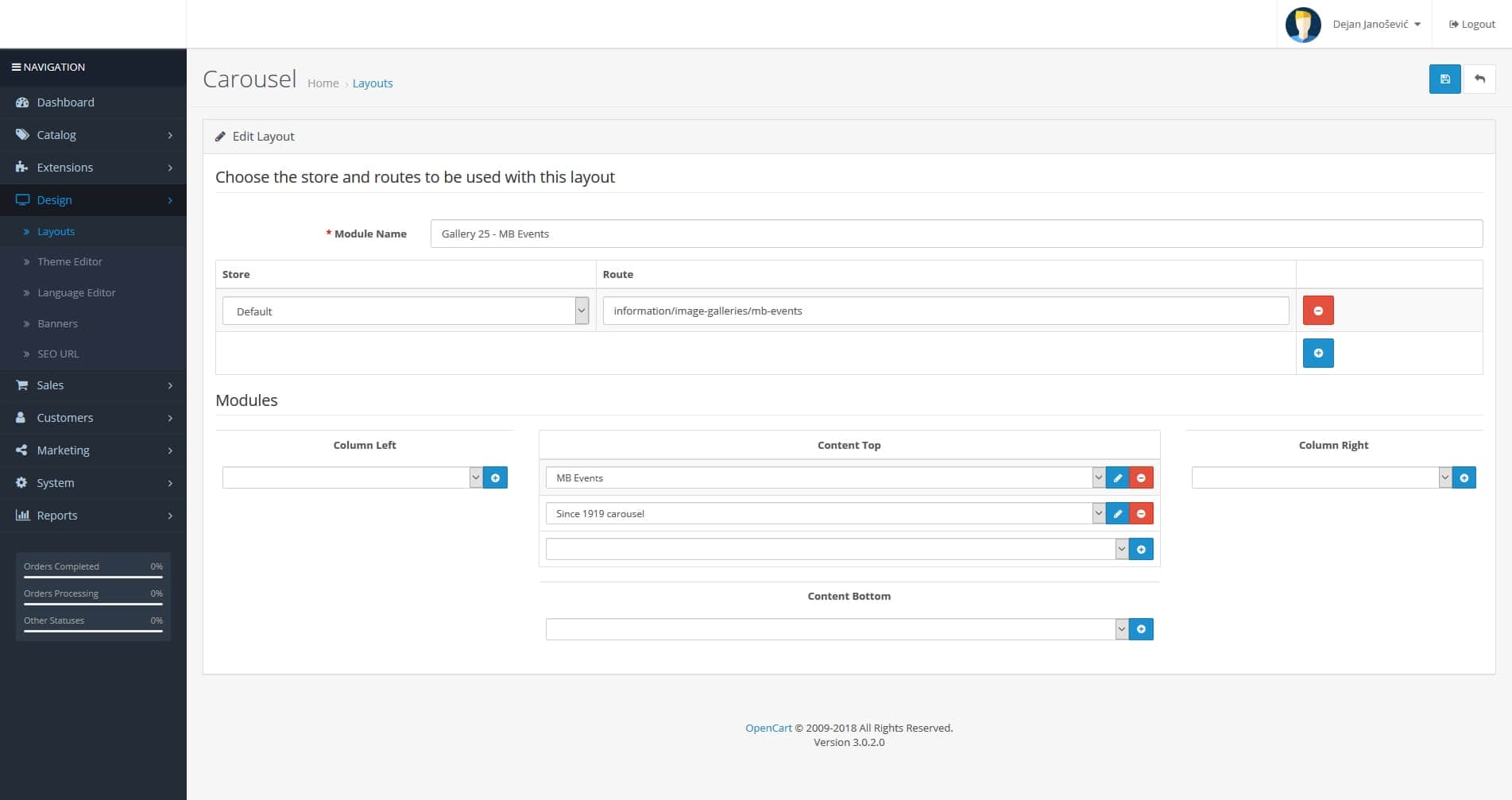
5. Design > Layouts > Add New (I named each gallery starting with “Gallery 25 – etc…”); then add the route: information/image-galleries/mb-events; and add modules in the Content Top part (image 2 attached after this text)
6. Go back to Catalog > Information and in the newly created page from step 4; add in the last tab Design the Layout Override that you created in step 5 (in this example it is Gallery 25 – MB Events)
7. Design > Banners > Main gallery page > Add new gallery to the bottom of the page with the highest Sort Order number, gallery thumbnail and link to the page (in this example it is: https://www.celebrationsgroup.com/mb-events)


in catalog/controller/information/contact.php file
find:
$this->response->redirect($this->url->link('information/contact/success'));add above:
$this->session->data['success'] = true;Then, find:
$data['continue'] = $this->url->link('common/home');add below:
if (!empty($this->session->data['success'])) {
$data['text_success'] = $this->language->get('text_success');
unset ($this->session->data['success']);
}In catalog/view/theme/<your_theme>/template/common/success.twig file
find:
</ul>add below:
{% if text_success %}
<div class="alert alert-success alert-dismissible"><i class="fa fa-check-circle"></i> {{ text_success }}</div>
{% endif %}This should resolved the problem.

https://www.freedesktop.org/software/systemd/man/systemd-journald.service.html
notes
STREAM /RUN/SYSTEMD/JOURNAL/STDOUT
When we implemented ModSecurity™ Tools with vendor OWASP ModSecurity Core Rule Set, OpenCart site displayed strange behavior.
We had to disable three of the 21+ core rules to make our OpenCart site act and preform normal again. Below are the three rules we had to disable.
Hope this helps others who may have a VPS/server that has implemented ModSecurity™ Tools for Cpanel/WHM..
Rules we had to disable
rules/REQUEST-33-APPLICATION-ATTACK-PHP.conf
rules/REQUEST-41-APPLICATION-ATTACK-XSS.conf
rules/REQUEST-42-APPLICATION-ATTACK-SQLI.conf
Stephen W. Hawking, the Cambridge University physicist and best-selling author who roamed the cosmos from a wheelchair, pondering the nature of gravity and the origin of the universe and becoming an emblem of human determination and curiosity, died early Wednesday at his home in Cambridge, England. He was 76.
His death was confirmed by a spokesman for Cambridge University.
“Not since Albert Einstein has a scientist so captured the public imagination and endeared himself to tens of millions of people around the world,” Michio Kaku, a professor of theoretical physics at the City University of New York, said in an interview.
Dr. Hawking did that largely through his book “A Brief History of Time: From the Big Bang to Black Holes,” published in 1988. It has sold more than 10 million copies and inspired a documentary film by Errol Morris. The 2014 film about his life, “The Theory of Everything,” was nominated for several Academy Awards and Eddie Redmayne, who played Dr. Hawking, won the Oscar for best actor.
Scientifically, Dr. Hawking will be best remembered for a discovery so strange that it might be expressed in the form of a Zen koan: When is a black hole not black? When it explodes.
What is equally amazing is that he had a career at all. As a graduate student in 1963, he learned he had amyotrophic lateral sclerosis, a neuromuscular wasting disease also known as Lou Gehrig’s disease. He was given only a few years to live.
The disease reduced his bodily control to the flexing of a finger and voluntary eye movements but left his mental faculties untouched.
He went on to become his generation’s leader in exploring gravity and the properties of black holes, the bottomless gravitational pits so deep and dense that not even light can escape them.
That work led to a turning point in modern physics, playing itself out in the closing months of 1973 on the walls of his brain when Dr. Hawking set out to apply quantum theory, the weird laws that govern subatomic reality, to black holes. In a long and daunting calculation, Dr. Hawking discovered to his befuddlement that black holes — those mythological avatars of cosmic doom — were not really black at all. In fact, he found, they would eventually fizzle, leaking radiation and particles, and finally explode and disappear over the eons.
Nobody, including Dr. Hawking, believed it at first — that particles could be coming out of a black hole. “I wasn’t looking for them at all,” he recalled in an interview in 1978. “I merely tripped over them. I was rather annoyed.”
That calculation, in a thesis published in 1974 in the journal Nature under the title “Black Hole Explosions?,” is hailed by scientists as the first great landmark in the struggle to find a single theory of nature — to connect gravity and quantum mechanics, those warring descriptions of the large and the small, to explain a universe that seems stranger than anybody had thought.
The discovery of Hawking radiation, as it is known, turned black holes upside down. It transformed them from destroyers to creators — or at least to recyclers — and wrenched the dream of a final theory in a strange, new direction.
“You can ask what will happen to someone who jumps into a black hole,” Dr. Hawking said in an interview in 1978. “I certainly don’t think he will survive it.
“On the other hand,” he added, “if we send someone off to jump into a black hole, neither he nor his constituent atoms will come back, but his mass energy will come back. Maybe that applies to the whole universe.”
Dennis W. Sciama, a cosmologist and Dr. Hawking’s thesis adviser at Cambridge, called Hawking’s thesis in Nature “the most beautiful paper in the history of physics.”
Official website : http://www.hawking.org.uk/
WIKI : https://en.wikipedia.org/wiki/Stephen_Hawking
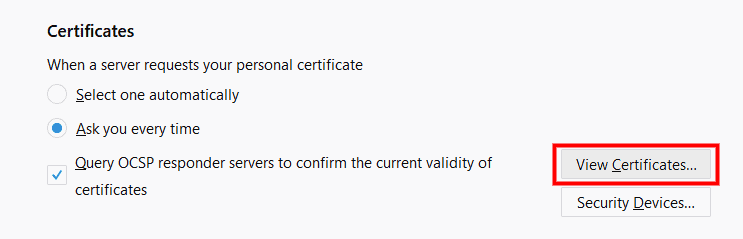
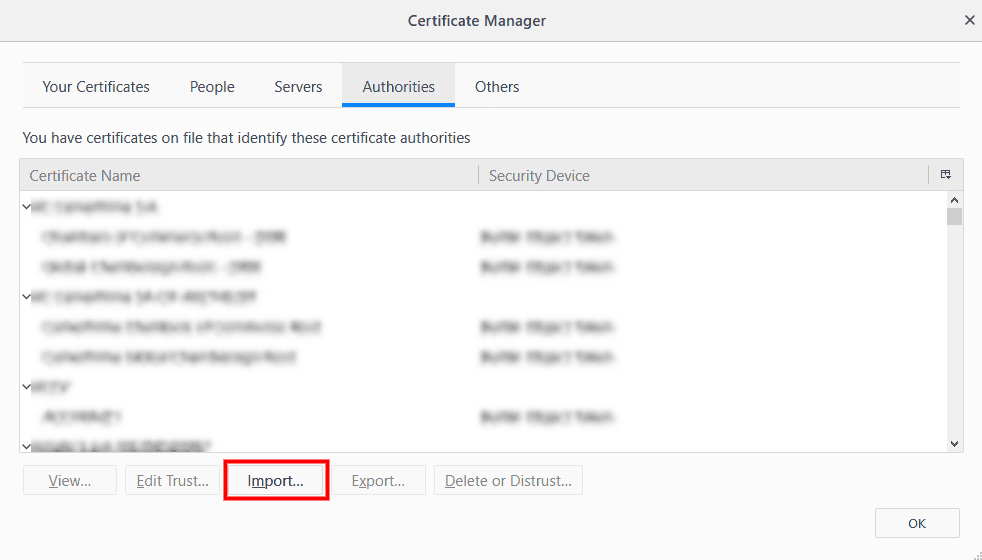
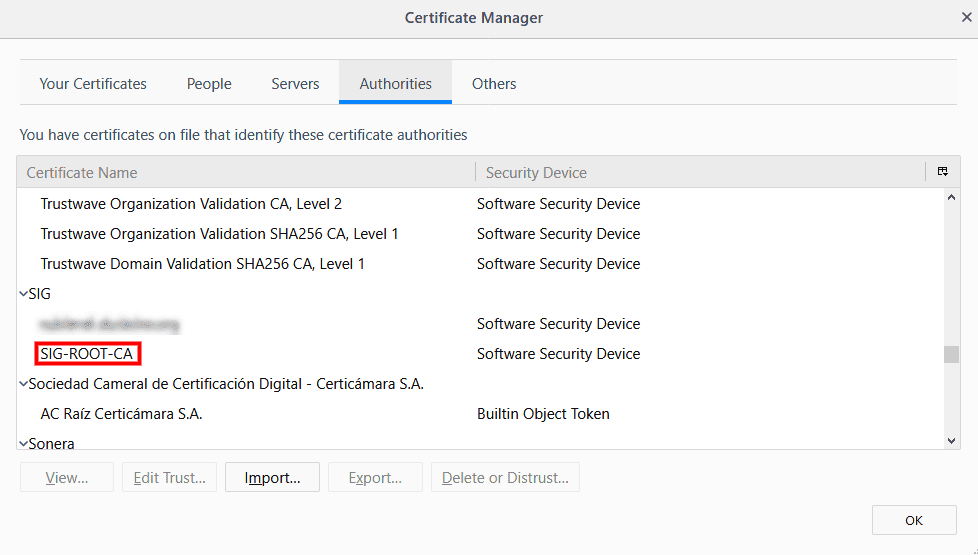
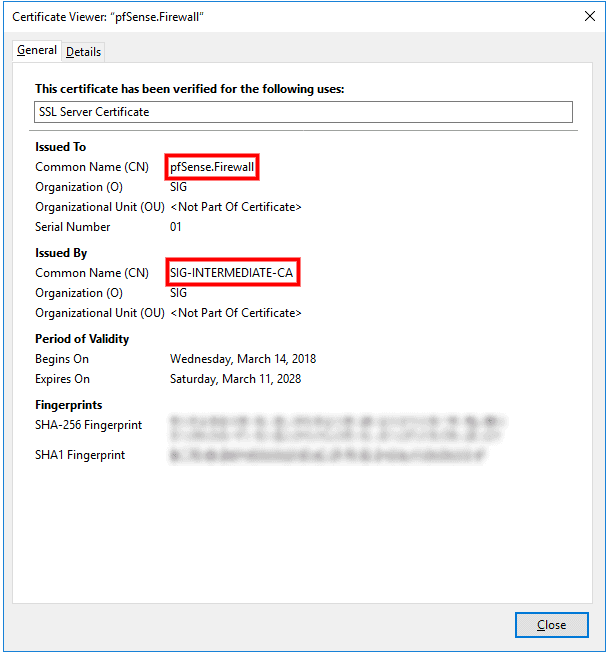
NOTES: If you are using Firefox, you must import the ROOT-CA Certificate that you have generated on your pfSense firewall. I noticed using Chrome that you don’t need to import the ROOT CA Certificate to make it work on the Local Side!
In the menu of your Firefox Browser navigate here >
> Tools > Options > Privacy & Security > “Scroll down” click on View Certificate.


Check both options and import!
Et voilà!!!
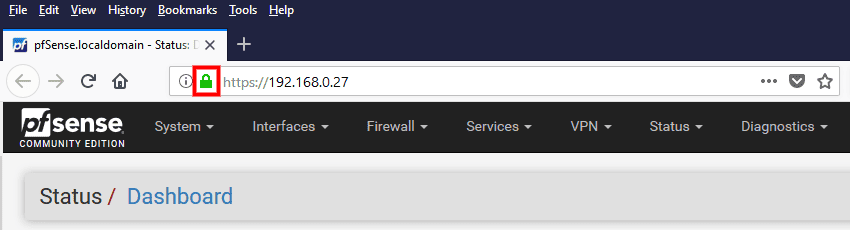
Now in Firefox your pfSense will be secured using your CA Certificate on the local side 😉

You may check for the certificate in Firefox


Enjoy!
Request denied by pfSense v 2.4.x proxy SquidGuard: 403 Forbidden
To fix this…
Navigate to

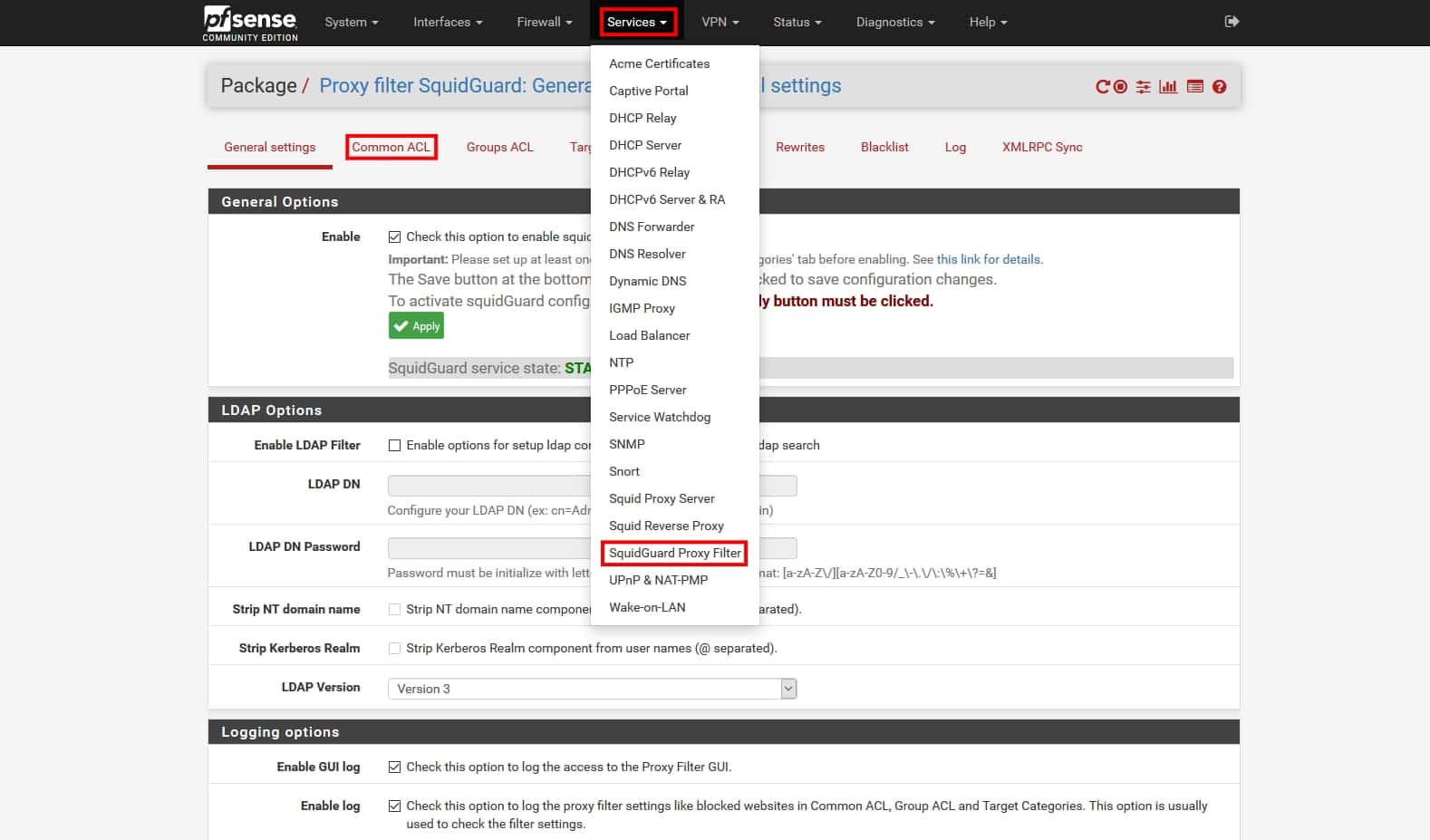
> Services > SquidGuard Proxy Filter >
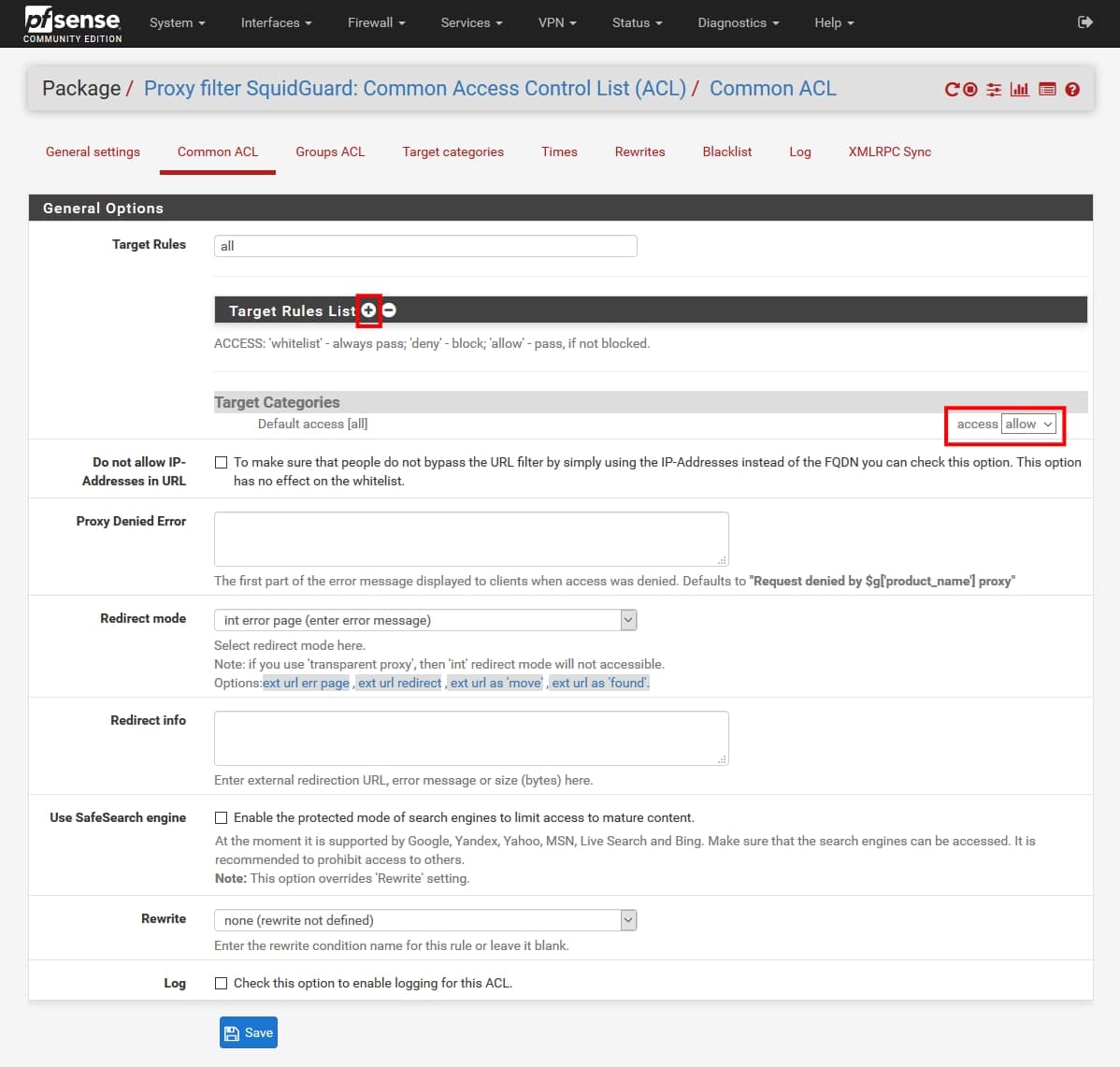
> SquidGuard Proxy Filter > Common ACL >
Target Rules! Just type : all
Click the + Sign icon
Under Target Categories select > access “Allow”

Click Save!
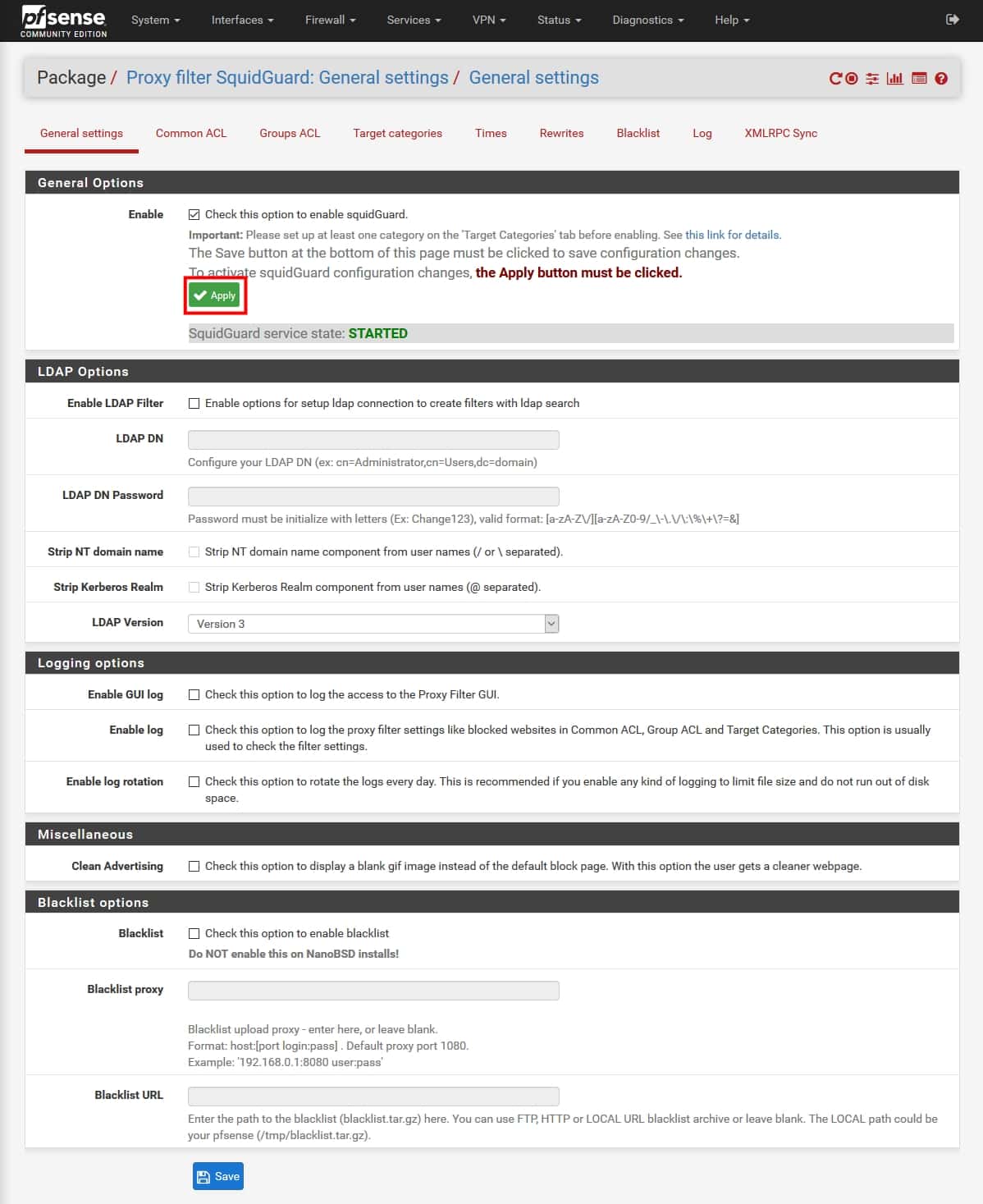
When you make any changes to SquidGuard, you need to remember to go back to the General settings page and click the Apply button or nothing you did will take effect.

Also don’t forget to empty your browser cache.
Zepko Analysts decided to try to track down ransomware threat actors using a different approach.
Zepko were recently approached by a company who were hit with ransomware which was identified by Zepko Analysts as a variant of CrySiS ransomware using file extensions .dharma, .wallet or .zzzzz.
Analysts have had previous experience dealing with CrySiS ransomware and discovered that the Threat Actors often use RDP brute force attacks to login, kill the antivirus and monitoring processes, then execute the ransomware payload. To find out more regarding ransomware over RDP attacks visit https://news.zepko.com/ransomware-over-rdp/
Leading on from this, as we know, most ransomware types leave a contact email address in the ransom note or in the file extension, which is used as a direct point of contact with the Threat Actor. This is the email address to directly talk about the payment methods, usually in return for a decryption tool for the encrypted files. In this correspondence Threat Actors also sometimes offer to decrypt one or two files to prove they are able to decrypt files as promised.
Using the email address in the ransom note, Analysts attempted to see if it was possible to somehow use this direct contact with the Threat Actor as a way of tracking them down.
To do this they decided to use a method utilising the STUN protocol, otherwise known as Simple Traversal of User Datagram Protocol (UDP) through Network Address Translators (NAT’s)). Quite a mouthful.
The protocol has a number of different uses but simply put, STUN is a tool which can be used to detect and traverse NATs that are located between two endpoints. When a blinding request is sent over UDP from a client operating from a private network, the STUN server responds with the IP and port number of the client. A full, (and much better) explanation of the STUN Protocol can be found on Wikipedia at https://en.wikipedia.org/wiki/STUN
To perform a stun request on a ransomware Threat Actor, Analysts used a hidden PHP script in an image to perform the STUN request once a link is clicked by the Threat Actor.
To do this, Analysts created a website with a webpage that displayed an image. This image contained the hidden PHP script that when the image is visited in a web browser it loads the PHP script and would initiate the STUN request which the response was logged containing the IP address of the person who clicked the link. This IP address would be that of the threat actor.
Because this was being sent in the form of a suspicious looking link it was highly unlikely that the threat actor would click it. To entice the Threat Actor to click the link, Analysts posed as a finance company who had been hit with the ransomware who were ready to pay the ransom.
Emailing the Threat Actor
Below is the email chain between Analysts and the Threat Actors. The email address contacted was injury@india.com. Spelling mistakes and typos were purposely made throughout the email correspondence to make it appear as if the message had been sent by someone who is not especially familiar with using computers.
Source : https://news.zepko.com/ransomware-threat-actors-stun/
STUN server ports : UDP 3478, TCP/TLS 5349
libcurl-errors – error codes in libcurl
This man page includes most, if not all, available error codes in libcurl. Why they occur and possibly what you can do to fix the problem are also included.
Almost all “easy” interface functions return a CURLcode error code. No matter what, using the curl_easy_setopt option CURLOPT_ERRORBUFFER is a good idea as it will give you a human readable error string that may offer more details about the cause of the error than just the error code. curl_easy_strerror can be called to get an error string from a given CURLcode number.
CURLcode is one of the following:
All fine. Proceed as usual.
CURLE_UNSUPPORTED_PROTOCOL (1)
The URL you passed to libcurl used a protocol that this libcurl does not support. The support might be a compile-time option that you didn’t use, it can be a misspelled protocol string or just a protocol libcurl has no code for.
Very early initialization code failed. This is likely to be an internal error or problem, or a resource problem where something fundamental couldn’t get done at init time.
The URL was not properly formatted.
A requested feature, protocol or option was not found built-in in this libcurl due to a build-time decision. This means that a feature or option was not enabled or explicitly disabled when libcurl was built and in order to get it to function you have to get a rebuilt libcurl.
CURLE_COULDNT_RESOLVE_PROXY (5)
Couldn’t resolve proxy. The given proxy host could not be resolved.
CURLE_COULDNT_RESOLVE_HOST (6)
Couldn’t resolve host. The given remote host was not resolved.
Failed to connect() to host or proxy.
CURLE_FTP_WEIRD_SERVER_REPLY (8)
The server sent data libcurl couldn’t parse. This error code is used for more than just FTP and is aliased as CURLE_WEIRD_SERVER_REPLY since 7.51.0.
CURLE_REMOTE_ACCESS_DENIED (9)
We were denied access to the resource given in the URL. For FTP, this occurs while trying to change to the remote directory.
While waiting for the server to connect back when an active FTP session is used, an error code was sent over the control connection or similar.
CURLE_FTP_WEIRD_PASS_REPLY (11)
After having sent the FTP password to the server, libcurl expects a proper reply. This error code indicates that an unexpected code was returned.
During an active FTP session while waiting for the server to connect, the CURLOPT_ACCEPTTIMEOUT_MS (or the internal default) timeout expired.
CURLE_FTP_WEIRD_PASV_REPLY (13)
libcurl failed to get a sensible result back from the server as a response to either a PASV or a EPSV command. The server is flawed.
CURLE_FTP_WEIRD_227_FORMAT (14)
FTP servers return a 227-line as a response to a PASV command. If libcurl fails to parse that line, this return code is passed back.
An internal failure to lookup the host used for the new connection.
A problem was detected in the HTTP2 framing layer. This is somewhat generic and can be one out of several problems, see the error buffer for details.
CURLE_FTP_COULDNT_SET_TYPE (17)
Received an error when trying to set the transfer mode to binary or ASCII.
A file transfer was shorter or larger than expected. This happens when the server first reports an expected transfer size, and then delivers data that doesn’t match the previously given size.
CURLE_FTP_COULDNT_RETR_FILE (19)
This was either a weird reply to a ‘RETR’ command or a zero byte transfer complete.
When sending custom “QUOTE” commands to the remote server, one of the commands returned an error code that was 400 or higher (for FTP) or otherwise indicated unsuccessful completion of the command.
CURLE_HTTP_RETURNED_ERROR (22)
This is returned if CURLOPT_FAILONERROR is set TRUE and the HTTP server returns an error code that is >= 400.
An error occurred when writing received data to a local file, or an error was returned to libcurl from a write callback.
Failed starting the upload. For FTP, the server typically denied the STOR command. The error buffer usually contains the server’s explanation for this.
There was a problem reading a local file or an error returned by the read callback.
A memory allocation request failed. This is serious badness and things are severely screwed up if this ever occurs.
Operation timeout. The specified time-out period was reached according to the conditions.
The FTP PORT command returned error. This mostly happens when you haven’t specified a good enough address for libcurl to use. See CURLOPT_FTPPORT.
CURLE_FTP_COULDNT_USE_REST (31)
The FTP REST command returned error. This should never happen if the server is sane.
The server does not support or accept range requests.
This is an odd error that mainly occurs due to internal confusion.
A problem occurred somewhere in the SSL/TLS handshake. You really want the error buffer and read the message there as it pinpoints the problem slightly more. Could be certificates (file formats, paths, permissions), passwords, and others.
CURLE_BAD_DOWNLOAD_RESUME (36)
The download could not be resumed because the specified offset was out of the file boundary.
CURLE_FILE_COULDNT_READ_FILE (37)
A file given with FILE:// couldn’t be opened. Most likely because the file path doesn’t identify an existing file. Did you check file permissions?
LDAP cannot bind. LDAP bind operation failed.
LDAP search failed.
Function not found. A required zlib function was not found.
CURLE_ABORTED_BY_CALLBACK (42)
Aborted by callback. A callback returned “abort” to libcurl.
CURLE_BAD_FUNCTION_ARGUMENT (43)
Internal error. A function was called with a bad parameter.
Interface error. A specified outgoing interface could not be used. Set which interface to use for outgoing connections’ source IP address with CURLOPT_INTERFACE.
Too many redirects. When following redirects, libcurl hit the maximum amount. Set your limit with CURLOPT_MAXREDIRS.
An option passed to libcurl is not recognized/known. Refer to the appropriate documentation. This is most likely a problem in the program that uses libcurl. The error buffer might contain more specific information about which exact option it concerns.
CURLE_TELNET_OPTION_SYNTAX (49)
A telnet option string was Illegally formatted.
CURLE_PEER_FAILED_VERIFICATION (51)
The remote server’s SSL certificate or SSH md5 fingerprint was deemed not OK.
Nothing was returned from the server, and under the circumstances, getting nothing is considered an error.
CURLE_SSL_ENGINE_NOTFOUND (53)
The specified crypto engine wasn’t found.
CURLE_SSL_ENGINE_SETFAILED (54)
Failed setting the selected SSL crypto engine as default!
Failed sending network data.
Failure with receiving network data.
problem with the local client certificate.
Couldn’t use specified cipher.
Peer certificate cannot be authenticated with known CA certificates.
CURLE_BAD_CONTENT_ENCODING (61)
Unrecognized transfer encoding.
Invalid LDAP URL.
Maximum file size exceeded.
Requested FTP SSL level failed.
When doing a send operation curl had to rewind the data to retransmit, but the rewinding operation failed.
CURLE_SSL_ENGINE_INITFAILED (66)
Initiating the SSL Engine failed.
The remote server denied curl to login (Added in 7.13.1)
File not found on TFTP server.
Permission problem on TFTP server.
Out of disk space on the server.
Illegal TFTP operation.
Unknown TFTP transfer ID.
File already exists and will not be overwritten.
This error should never be returned by a properly functioning TFTP server.
Character conversion failed.
Caller must register conversion callbacks.
Problem with reading the SSL CA cert (path? access rights?)
CURLE_REMOTE_FILE_NOT_FOUND (78)
The resource referenced in the URL does not exist.
An unspecified error occurred during the SSH session.
CURLE_SSL_SHUTDOWN_FAILED (80)
Failed to shut down the SSL connection.
Socket is not ready for send/recv wait till it’s ready and try again. This return code is only returned from curl_easy_recv and curl_easy_send (Added in 7.18.2)
Failed to load CRL file (Added in 7.19.0)
Issuer check failed (Added in 7.19.0)
The FTP server does not understand the PRET command at all or does not support the given argument. Be careful when using CURLOPT_CUSTOMREQUEST, a custom LIST command will be sent with PRET CMD before PASV as well. (Added in 7.20.0)
Mismatch of RTSP CSeq numbers.
Mismatch of RTSP Session Identifiers.
Unable to parse FTP file list (during FTP wildcard downloading).
Chunk callback reported error.
CURLE_NO_CONNECTION_AVAILABLE (89)
(For internal use only, will never be returned by libcurl) No connection available, the session will be queued. (added in 7.30.0)
CURLE_SSL_PINNEDPUBKEYNOTMATCH (90)
Failed to match the pinned key specified with CURLOPT_PINNEDPUBLICKEY.
CURLE_SSL_INVALIDCERTSTATUS (91)
Status returned failure when asked with CURLOPT_SSL_VERIFYSTATUS.
Stream error in the HTTP/2 framing layer.
An API function was called from inside a callback.
These error codes will never be returned. They were used in an old libcurl version and are currently unused.
This is the generic return code used by functions in the libcurl multi interface. Also consider curl_multi_strerror.
This is not really an error. It means you should call curl_multi_perform again without doing select() or similar in between. Before version 7.20.0 this could be returned by curl_multi_perform, but in later versions this return code is never used.
Things are fine.
The passed-in handle is not a valid CURLM handle.
An easy handle was not good/valid. It could mean that it isn’t an easy handle at all, or possibly that the handle already is in used by this or another multi handle.
You are doomed.
This can only be returned if libcurl bugs. Please report it to us!
The passed-in socket is not a valid one that libcurl already knows about. (Added in 7.15.4)
curl_multi_setopt() with unsupported option (Added in 7.15.4)
An easy handle already added to a multi handle was attempted to get added a second time. (Added in 7.32.1)
An API function was called from inside a callback.
The “share” interface will return a CURLSHcode to indicate when an error has occurred. Also consider curl_share_strerror.
All fine. Proceed as usual.
An invalid option was passed to the function.
The share object is currently in use.
An invalid share object was passed to the function.
Not enough memory was available. (Added in 7.12.0)
The requested sharing could not be done because the library you use don’t have that particular feature enabled. (Added in 7.23.0)
Good day!
I have detected on my pfsense connected under ClearOS setup @
,,…. 😉 generating IPV6 traffic,…,
,,… here is the way to block all IPV6 in ClearOS!
Disabling the ipv6 module by adding or changing the following file on your ClearOS !
# nano /etc/sysctl.conf
net.ipv6.conf.all.disable_ipv6 =1
for sure you already block IPV6 in
# nano /etc/modprobe.d/disable-ipv6.conf
options ipv6 disable=1
😉
Enjoy!